Top Smart Home Office Gadgets for Remote Learning
As an Amazon Associate, I earn from qualifying purchases. This article may contain affiliate links, which means we may receive a commission at no extra cost to you.
As an Amazon Associate, I earn from qualifying purchases. This article may contain affiliate links, which means we may receive a commission at no extra cost to you.
Setting up a productive, comfortable home office for remote learning means more than a laptop and a desk lamp. Small, smart gadgets can dramatically reduce friction during study sessions, presentations, and virtual classes: imagine a clicker that advances slides without reaching for your computer, a facial recognition time clock for tracking attendance at a home tutoring setup, a dimmable torchiere that brightens video calls without harsh glare, and a programmable macro pad that automates repetitive tasks. This guide collects top-rated smart home office tools that students, tutors, and remote workers commonly buy to solve everyday problems like awkward presentations, poor lighting, inefficient workflows, and clumsy attendance tracking.
Below you’ll find a researched, practical buyer’s guide plus in-depth descriptions of 5 reliable products. I relied on product specs, verified manufacturer details, and patterns from customer feedback to highlight who benefits most from each gadget and which features are worth prioritizing. If you’re upgrading a home classroom, creating a hybrid workspace, or helping a student study more efficiently, these picks will help you narrow choices and avoid common pitfalls.
Buying Guide
What to look for when choosing smart home office gadgets for remote learning
Compatibility and platform support: The most common frustration is buying a device that doesn’t play nice with your operating system or presentation software. Check compatibility with Mac, Windows, Google Slides, and Keynote for presentation tools. For stream controllers and macro pads, confirm if you can map keys to Zoom, Teams, or your preferred apps.
Connectivity and latency: Wireless devices can use Bluetooth or 2.4GHz USB receivers. Bluetooth is convenient but sometimes introduces latency or pairing inconsistencies with mixed-device households. A 2.4GHz dongle often gives lower latency and plug-and-play reliability, which matters for slide advancers and air mice.
Power and battery life: Rechargeable batteries are more convenient than disposables; confirm run-time estimates and whether the product charges via USB-C or micro-USB. Some lamps and controllers support pass-through charging for continuous use.
Ease of use and ergonomics: Remote learning is long sessions—choose clickers and remotes with comfortable button placement and readable indicators. Lamps should offer dimming, color temperature controls, and stable bases. Stream controllers should have tactile keys and software that’s easy to configure.
Smart features and privacy: Devices with facial recognition or temperature reading can be helpful in supervised learning setups but check privacy policies and data handling. Choose vendors that store minimal or local data when possible.
Build quality vs price: Many inexpensive clickers and lamps offer reasonable performance, but spending a bit more on solid construction, a reliable dongle, and reputable software saves frustration.
Real-world fit: Think about where the gadget will live—on a desk, mounted, or shared among family members. If multiple people use it, prioritize plug-and-play solutions with minimal setup.
With those criteria in mind, the following product breakdowns explain who each item is best for, real-life usage scenarios, and the practical pros and cons to help you decide.
QUI Presentation Clicker with Volume Control, 2.4GHz USB Wireless Presenter Remote, PowerPoint Clicker Slide Advancer Compatible with Mac, Windows, Google Slides, Keynote

Best For:
Students, tutors, and teachers wanting a simple, reliable USB wireless slide advancer with volume control.
The QUI Presentation Clicker is a budget-friendly 2.4GHz wireless presenter designed for anyone who gives frequent slide-based presentations during remote classes, virtual tutoring sessions, or student project defenses. Its compact form and simple button layout make it an intuitive tool for older students, teachers, or homeschooling parents who need a reliable slide advancer that works across Mac, Windows, Google Slides, and Keynote without fuss.
What sets this clicker apart is its combination of a plug-and-play 2.4GHz USB receiver and an extra volume control wheel—an unexpected but handy addition when you’re switching between narrated slides and embedded video clips. The wireless dongle avoids the pairing quirks of Bluetooth and generally reduces latency, which is crucial when you want slides to advance exactly when you press the button. The unit is lightweight with a familiar left/right button, and the battery life is typical for remotes in this price range; most users report getting many sessions from a single battery or a single charge depending on the model variant.
In real-life remote learning scenarios, this clicker shines when the presenter needs mobility. A tutor can move around a small whiteboard while advancing slides; a student can stand during a classroom presentation without being tethered to a laptop; and a presenter can mute or adjust volume on the fly when switching to a video clip. It’s also a good secondary remote to keep in a backpack for group presentations because it’s resilient to quick plug-and-play use on different machines.
Compared with more premium clickers, the QUI sacrifices some build refinement and extra features such as laser pointers or gesture-supported air mouse control. But that tradeoff results in a straightforward device that focuses on core functionality—reliable slide advancement and volume control—at a lower cost. If you require advanced pointer features, integrated laser pointers, or multi-button programmable controls, higher-end models will be more suitable.
Who should buy this: Students, tutors, and teachers who want a no-nonsense slide advancer that reliably connects with a USB dongle and handles volume without a separate remote. It’s also a practical spare for classrooms that rotate presenters.
Who may skip it: Presenters who need advanced features like built-in lasers, air-mouse motion control, or heavy programmability should look at premium alternatives.
Practical buying considerations: Verify the clicker’s battery type, confirm that your device has a free USB-A port for the dongle or use a compatible adaptor for USB-C. If you share the remote across machines often, keep the dongle in a small labeled pouch to avoid misplacing it.
Check the latest price on Amazon.
Pros
- Plug-and-play 2.4GHz dongle for low latency
- Volume wheel for quick audio adjustments
- Compact and easy to carry
Cons
- No laser pointer in some variants
- Basic build quality compared with premium remotes
Want a simple, reliable clicker for classes and presentations? Check the latest price on Amazon.
uAttend Touch-Free Voice Control and Facial Recognition Time Clock with Temperature Reader (DR2500)

Best For:
Small tutoring centers, homeschool co-ops, and home-based educational businesses needing touch-free attendance and basic health screening.
The uAttend DR2500 is a commercial-grade touch-free time clock that brings facial recognition, temperature reading, and voice-activated check-in to small offices, tutoring centers, and household learning spaces that require reliable attendance tracking. While most households don’t need enterprise timekeeping, families running home-based tutoring services, after-school programs, or co-op classes can find this device especially useful for logging arrival times, monitoring room access, and maintaining a simple attendance record without physical touch.
This unit uses facial recognition to identify users and can also read temperatures as people check in—features that became popular for health-conscious operations. The touch-free voice control option allows users to interact with the clock without touching the screen, which reduces shared contact points. For households that manage multiple students, the DR2500 offers a more controlled check-in experience than a shared spreadsheet and integrates with web-based payroll or attendance systems used by small organizations. The display is large and clear, and the device supports multiple user profiles so it can distinguish students, staff, and visitors.
In practice, the DR2500 is best deployed where attendance data matters beyond casual tracking. A small tutoring business can use it to validate session times for billing, a homeschool cooperative can monitor who attended which workshop, and an after-school program can record student arrivals for safety and parent notifications. The temperature reader adds an extra layer of health screening, though you should regard such sensors as a preliminary check rather than a diagnostic tool.
Compared with simple app-based check-in solutions, the DR2500 provides a physical, centralized station that reduces the need for manual record-keeping and offers faster onboarding for non-technical users. However, it’s heavier in features (and price) than basic sign-in tablets and requires some initial setup and configuration of user profiles.
Who should buy this: Home-based tutoring services, small learning centers, and co-ops that need a reliable, touch-free attendance system and basic health screening.
Who may skip it: Families who only occasionally track attendance or those comfortable with app-based sign-ins and shared calendars may find it overkill.
Practical buying notes: Check integration options with your payroll or attendance software, confirm network and power requirements, and review privacy settings for facial recognition storage policies.
Check the latest price on Amazon.
Pros
- Touch-free facial recognition for quick check-ins
- Built-in temperature reader for preliminary screening
- Voice control reduces shared contact points
Cons
- More feature-rich (and complex) than simple sign-in apps
- Requires setup and consideration of privacy/settings
Need a touch-free attendance solution for a tutoring business or co-op? Check the latest price on Amazon.
SIBRILLE Upgraded 2-in-1 Torchiere Floor Lamp, Dimmable Standing Lamp with Remote&Button Control, 34W Brightness Adjustable Floor Reading Light, Black Modern Corner Lamp for Living Room Bedroom Office

Best For:
Students and remote workers wanting versatile, dimmable room and task lighting to improve study and video-call quality.
Good lighting is one of the easiest ways to improve remote learning and video call quality. The SIBRILLE Upgraded 2-in-1 Torchiere Floor Lamp is a versatile lighting solution that combines a bright overhead torchiere with a focused reading light, both dimmable and controllable via remote or touch buttons. This lamp targets students, parents, and remote workers who need adaptable lighting that reduces eye strain, improves webcam image quality, and fits neatly into a corner or beside a desk.
With a maximum brightness comparable to a 34W LED setup and multiple color temperatures, this lamp lets you dial in cool white for focused studying or warmer tones for relaxed reading. The included remote provides easy adjustments from across the room—handy for changing light during video calls without standing up and interrupting a session. The secondary reading arm is adjustable, giving directional light for textbooks, art projects, or note-taking. Build quality falls in line with mid-range floor lamps: a stable base, a slim pole for space-saving placement, and straightforward assembly that most buyers complete in under 30 minutes.
In real-life home learning scenarios, this lamp covers several bases. Students doing late-night study sessions benefit from the task light over a desk, while presenters on video calls can use the torchiere to remove shadows and create a more even, flattering lighting on camera. The dimmable settings help reduce screen glare during extended sessions, and the low-profile design fits small corners and shared rooms without dominating the space.
Compared to a basic desk lamp, the SIBRILLE torchiere offers a broader range of lighting options and a built-in secondary lamp, meaning you may not need two separate fixtures. Against high-end studio lights, it won’t match professional color rendering or diffusion, but at a fraction of the cost it provides pragmatic improvement to everyday video and study tasks.
Who should buy this: Students and remote learners who need flexible, room-enhancing lighting and those who prefer a combined overhead and task light rather than multiple lamps.
Who may skip it: Buyers seeking professional-grade studio lighting or ultra-compact desk-only solutions may prefer specialized alternatives.
Practical buying tips: Measure ceiling height and the lamp’s assembled height to ensure fit, check that the remote’s batteries are included or easily sourced, and position the lamp slightly behind and above your webcam for best on-camera lighting.
Check the latest price on Amazon.
Pros
- Dual 2-in-1 lighting (torchiere + task lamp)
- Remote and touch controls for convenience
- Adjustable color temperature and brightness
Cons
- Not a substitute for professional studio lighting
- Large footprint may not suit very cramped spaces
Want better, more flexible lighting for study and video calls? Check the latest price on Amazon.
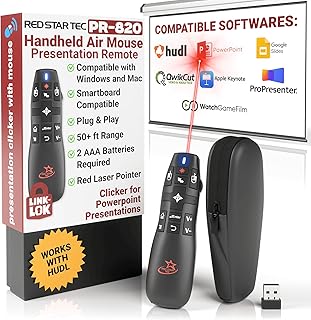
PR-820 Presentation Clicker for Mac – Smartboard Remote PowerPoint Clicker with Laser Pointer & Air Mouse, Compatible with Keynote, Google Slides, MacBook & PC
Best For:
Teachers, lecturers, and advanced student presenters needing laser pointer and air-mouse cursor control.
The PR-820 Presentation Clicker is a feature-rich remote aimed at presenters who want more control than a basic slide advancer. With a built-in laser pointer, air mouse capability, and compatibility across Keynote, Google Slides, MacBook, and PC, it’s tailored to classroom instructors, student presenters, and remote lecturers who move frequently or who interact with touchscreens and smartboards.
This clicker’s air mouse function lets you control an on-screen cursor by pointing the remote—handy when gliding between a presentation and annotation on a smartboard or touchscreen. The integrated laser pointer helps draw attention during explanations without needing to hover close to the display. Users appreciate how the PR-820 consolidates several tools into one compact device: slide navigation, pointer functions, and cursor control, which reduces the number of gadgets you need on a podium or desk.
In practical remote learning contexts, the PR-820 supports a range of scenarios. A teacher marking a digital worksheet on an interactive whiteboard can keep the remote in hand and use air mouse gestures for navigation, while a student delivering a final project can confidently highlight specific chart elements with the laser. The remote’s compatibility with major presentation platforms minimizes compatibility headaches; it usually works plug-and-play with a USB receiver, though checking for required drivers or mode switches is wise before a high-stakes presentation.
Compared with simpler remotes, the PR-820’s richer feature set adds versatility at the cost of a slightly steeper learning curve and potentially higher price. If your presentations are basic slide turnovers, a simpler USB presenter may be more economical. Conversely, if you frequently annotate, switch windows, or need cursor control from a distance, the PR-820 can replace multiple accessories.
Who should buy this: Educators, lecturers, and advanced student presenters who need laser pointing and remote cursor control on smartboards or large displays.
Who may skip it: Users who only need basic next/previous slide control and prefer ultra-simple remotes.
Practical buying suggestions: Test the air mouse responsiveness with your specific display type and confirm whether the USB receiver fits your device or requires an adapter.
Check the latest price on Amazon.
Pros
- Laser pointer and air mouse in one device
- Multi-platform compatibility
- Combines several presenter tools into one
Cons
- More features mean a learning curve
- May require adapter or driver for some systems
Looking for a versatile presenter with laser and air-mouse control? Check the latest price on Amazon.
Elgato Stream Deck Mini – Control Zoom, Teams, PowerPoint, MS Office and Boost Productivity with Seamless Integration for Daily Apps, Set Up Shortcuts Easily, USB, Compatible with Mac and PC

Best For:
Teachers, tutors, and power users who want to automate common virtual classroom actions and launch sequences with one button.
The Elgato Stream Deck Mini is a compact, programmable control pad that brings one-touch automation to remote learning workflows. While originally marketed to streamers, its ability to trigger macros, switch scenes, mute audio, or launch applications makes it highly useful for teachers, tutors, and students who run complex virtual classes or multi-app lessons.
This USB-powered pad has six customizable LCD keys that you can map to actions like starting a Zoom recording, toggling your microphone in Teams, launching a presentation file, or switching between browser tabs. The accompanying software is straightforward: drag-and-drop actions, create multi-step macros, and customize icons for quick visual reference. For educators who run recurring lesson plans, a Stream Deck Mini can reduce repeated clicks and help keep sessions flowing smoothly—no fumbling through menus to share a screen or play an audio clip.
Real-world use cases include a teacher mapping keys to mute/unmute, start screen sharing, show a quiz, and trigger a video clip—streamlining classroom control when managing students’ attention. A tutor can program a sequence that opens a lesson file, starts a timer, and plays background music for focus. Students using project-based workflows benefit from shortcuts that open relevant documents, run compile commands, or paste common responses during Q&A.
Compared to generic macro pads, the Elgato software ecosystem and prebuilt integrations with apps like OBS, Zoom, and PowerPoint give it an edge in ease of setup. It’s smaller and simpler than the full-size Stream Deck but retains the core productivity benefits at a more accessible price point.
Who should buy this: Teachers, tutors, and power users who want quick access to common actions during virtual lessons to reduce friction and maintain engagement.
Who may skip it: Casual users who rarely switch apps or perform repeated tasks may not need a dedicated macro pad.
Practical buying advice: Plan your most-used actions before configuring the device, and keep a backup profile for ad-hoc sessions or shared classroom use.
Check the latest price on Amazon.
Pros
- Highly customizable with intuitive software
- Prebuilt integrations for Zoom, OBS, and PowerPoint
- Saves time by automating repetitive tasks
Cons
- Limited to six physical keys (Mini model)
- Requires software setup and occasional profile management
Want to automate recurring classroom tasks with one-button shortcuts? Check the latest price on Amazon.
Final Verdict
Choosing the right smart home office gadget for remote learning depends on what problems you’re trying to solve. For straightforward slide control and volume tweaks, the QUI Presentation Clicker is a simple, reliable choice. If you run a small tutoring business or co-op and need formalized attendance and basic health screening, the uAttend DR2500 offers centralized, touch-free check-ins. For improving on-camera presence and eye comfort, the SIBRILLE torchiere provides flexible room and task lighting without the complexity of studio gear. If you require a multi-functional presenter with pointer and air-mouse features, the PR-820 is a capable all-in-one remote. And for streamlining complex virtual workflows, the Elgato Stream Deck Mini saves clicks and keeps lessons moving.
Each product here addresses common remote learning pain points—presentation control, attendance logging, lighting, advanced cursor control, and workflow automation. Think about your top friction points: do you stumble through slide switches, struggle with poor lighting, waste time launching apps, or need attendance records? Match the gadget to that problem and prioritize compatibility and ease of use.
If you’re unsure where to start, a good combo for many home classrooms is a dependable clicker (QUI or PR-820) plus flexible lighting (SIBRILLE). Add an Elgato Stream Deck Mini if you run recurring online sessions and want to automate tasks. For organized small businesses, the uAttend unit adds administrative structure.
Remember to check compatibility with your devices, consider battery and charging preferences, and factor in how shared the gadget will be among household members. These choices will help the tools feel like natural extensions of your workflow rather than additional chores.
Check the latest price on Amazon.
Conclusion
These Best Smart Home Office Gadgets for Remote Learning picks are trending now and offer great value and variety. Check the links above for latest prices and reviews.
As an Amazon Associate, I earn from qualifying purchases.
Tags:
remote learning gadgets, home office tools, presentation clicker, stream deck mini, torchiere floor lamp, attendance time clock, smart classroom accessories
