Top Productivity Gadgets for Remote Workers
As an Amazon Associate, I earn from qualifying purchases. This article may contain affiliate links, which means we may receive a commission at no extra cost to you.
As an Amazon Associate, I earn from qualifying purchases. This article may contain affiliate links, which means we may receive a commission at no extra cost to you.
Working from home or running a small remote team means juggling focus, time tracking, presentations and the little automation tasks that steal momentum. The right gadget can shave minutes — even hours — off your day and make remote work feel intentional instead of chaotic. In this guide I look at five practical productivity tools that solve common remote work headaches: clocking and attendance for small teams, more confident presentations, better focus with Pomodoro-style timers, and workflow automation with a compact control pad. Each product section below includes realistic use cases, who benefits most, plus pros and cons to help you decide.
Buying Guide
How to choose productivity gadgets for remote work
Start with the problem you want to solve: time tracking, focused work blocks, presentation control, or workflow shortcuts. Match features to routines — for example, if you lead a distributed team that needs reliable clock-ins, look for biometric or touch-free time clocks with cloud reporting. If you give frequent virtual presentations, a wireless presenter with a reliable dongle and volume control prevents awkward pauses.
Consider these practical factors:
– Compatibility: Check platform support (Windows, macOS, Zoom, Teams, PowerPoint, Keynote). Many small devices rely on USB or 2.4GHz dongles — make sure your machine has the right ports or an adapter.
– Noise and volume: Timers and alerts should have mute or low-volume modes for shared or quiet spaces.
– Integration and reporting: Time clocks and the Stream Deck value comes from software that hooks into your payroll, calendar or apps. Read what integrations are supported before buying.
– Build quality and portability: A compact gadget that sits on your desk or slips into a bag is more likely to be used regularly.
– Batteries and charging: Look for rechargeable options or long battery life so you’re not swapping cells every month.
Finally, read a mix of spec sheets and user experiences to spot common pain points — like unreliable Bluetooth pairing or cumbersome setup — so you’re not surprised after unboxing.
uAttend Touch-Free Voice Control and Facial Recognition Time Clock System for Employees and Small Businesses (DR2000)

Best For:
Small businesses, hybrid teams, and managers who need touch-free, accountable time tracking with cloud reporting.
Image: https://m.media-amazon.com/images/I/71BPKjkDGZL._AC_UL320_.jpg
If your remote or hybrid team still tracks hours with spreadsheets, the uAttend DR2000 is worth considering. This touch-free time clock combines facial recognition and voice control to speed up punch-ins while reducing buddy-punching and close-contact touchpoints — practical if you manage a small in-office roster or hourly remote staff who occasionally come on-site.
Main benefits: the DR2000 automates time entry and syncs with cloud-based reporting, which simplifies payroll and attendance monitoring. The facial recognition option gives managers a quick visual verification, and voice prompts make it accessible for team members who prefer auditory confirmation. Built-in connectivity options typically include Wi‑Fi and Ethernet backhaul to keep punch data flowing to the uAttend portal.
Real-life use cases: a hybrid retail team that comes in for weekend shifts can have accurate punch timestamps without a shared fingerprint scanner; a small contractor business can centralize timecards for payroll without manual entry; or a manager running a co-working studio can monitor occupancy and hours from a remote dashboard.
Why this product is valuable: uAttend targets small businesses and teams that need an affordable, lower-touch alternative to enterprise systems. Compared with traditional punch clocks or manual logs, it reduces administrative overhead and errors. Compared with simple app-based clock-ins, the DR2000’s biometric and voice features add accountability and convenience for mixed environments.
Buying considerations: ensure your team is comfortable with biometric login and check data privacy policies. Confirm the integrations you need for payroll export and whether the subscription tiers match your reporting volume. While reliable for many small businesses, larger operations may need more robust enterprise features.
Who should buy: small shops, hybrid teams, and managers who want a touch-free, more accountable timekeeping system. Who may not need it: fully remote teams that already use app-based or GPS time tracking and have no physical location to monitor.
Pros: cloud reporting, touch-free facial recognition, voice control. Cons: subscription for advanced reporting, privacy considerations around biometrics.
Ready to upgrade team time tracking? Check the latest price on Amazon.
Pros
- Touch-free facial recognition reduces buddy-punching and contact
- Cloud-based reporting simplifies payroll exports
- Voice prompts make punch-ins more accessible
Cons
- May require subscription for advanced reporting and features
- Biometric tracking raises privacy and policy considerations
Want a touch-free time clock for your small team? Check the latest price on Amazon.
QUI Presentation Clicker with Volume Control, 2.4GHz USB Wireless Presenter Remote, PowerPoint Clicker Slide Advancer Compatible with Mac, Windows, Google Slides, Keynote
Best For:
Frequent presenters—teachers, trainers, consultants—who need reliable slide control and volume adjustment during calls.
Image: https://m.media-amazon.com/images/I/51B0QtOUZnL._AC_UL320_.jpg
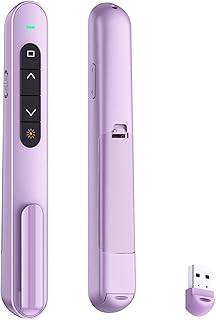
A presentation clicker can be surprisingly transformative for remote workers who regularly present over video calls, webinars or hybrid meetings. The QUI 2.4GHz wireless presenter is a compact, no-fuss remote with slide navigation and integrated volume control — designed to keep presentations flowing without hunting for on-screen controls.
Main benefits: low-latency 2.4GHz connectivity via a plug-and-play USB dongle avoids Bluetooth pairing headaches and tends to be more reliable across operating systems. The built-in volume button is a practical add-on for presenters who manage media or need to adjust audio without switching windows. Its lightweight design and clear tactile buttons make it comfortable for extended use.
Real-life use cases: educators teaching morning classes from home can advance slides and adjust volume while standing; product managers running demos can quickly highlight points without pausing the recording; consultants in hybrid rooms can stroll during presentations and use the dongle for instant connectivity.
Why it’s valuable: compared with using keyboard shortcuts or trackpad swipes, a physical clicker reduces awkward pauses and keeps your attention on delivery. Compared to Bluetooth remotes, a 2.4GHz dongle typically offers simpler pairing and fewer dropouts, which matters during client-facing calls.
Buying considerations: ensure your laptop has a free USB-A port or keep a USB-C adapter handy. If you frequently present on mobile devices, confirm compatibility first. The QUI is a practical pick for those who want a reliable, affordable presenter without extra software.
Who should buy: teachers, trainers, consultants and remote employees who present frequently. Who may not need it: users who never present or whose streaming setup is fully automated with dedicated AV gear.
Pros: dependable 2.4GHz dongle, volume control on-device, intuitive buttons. Cons: requires USB port or adapter, fewer advanced features than high-end presenters.
Ready to present with confidence? Check the latest price on Amazon.
Pros
- Plug-and-play 2.4GHz dongle for reliable connectivity
- On-device volume control prevents window-switching mid-presentation
- Lightweight and easy-to-use tactile buttons
Cons
- Requires a USB-A port or adapter for modern laptops
- Not as feature-rich as premium presenters with laser pointers or app integration
Want a dependable presenter remote? Check the latest price on Amazon.
Rotating Pomodoro Timer 5, 25, 10 50 Minutes Preset, Desk Productivity Flip Timer, ADHD Tool Cube Countdown Stopwatch, Vibration/High/Low Volume/Custom Modes, for Work, Study, Back to School, Kitchen
Best For:
Remote workers, students, and people with attention challenges who benefit from timed focus sessions.
Image: https://m.media-amazon.com/images/I/61ROjRaowcL._AC_UL320_.jpg
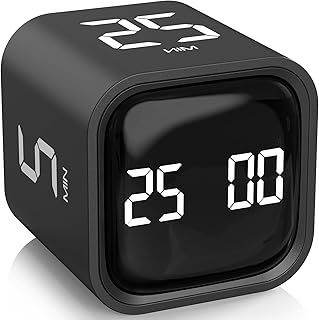
If staying focused is a daily struggle, a physical Pomodoro timer can be a gentle but consistent nudge toward structured work. This rotating Pomodoro timer offers preset intervals (5, 10, 25, 50 minutes), multiple alert modes (vibration, high/low volume, and custom), and a tactile cube design that’s both decorative and functional.
Main benefits: unlike phone apps that tempt you with notifications, a desk timer sits in your peripheral vision and creates a visual and physical commitment to a work block. The preset times match common Pomodoro cycles, and the vibration mode makes it usable in shared or quiet rooms. Custom modes let you dial in reminders that fit your rhythm, and the rotating action to set a timer is satisfying and low-friction.
Real-life use cases: a freelance writer uses 25-minute blocks for deep drafting then switches to 5-minute breaks to check email; a student with ADHD leverages vibration mode to prevent reliance on noisy alarms; a developer times focused debugging sessions in 50-minute stretches for complex bugs. It also doubles as a kitchen timer for families who need a multi-purpose solution.
Why this product is valuable: compared to phone-based timers or browser extensions, a physical device reduces temptation and makes the technique tactile. The multi-mode alerts and presets make it versatile for different environments and sensitivity to noise.
Buying considerations: check battery type and runtime; consider whether you prefer a rechargeable device or replaceable batteries. The cube design takes up desk real estate but adds a deliberate ritual to starting work. If you prefer app integrations or detailed logging, this is a simpler, behavioral tool rather than a data tracker.
Who should buy: anyone who benefits from timed focus blocks—remote workers, students, and people with attention challenges. Who may not need it: users who prefer full digital tracking and analytics or those who rely on team-driven schedules.
Pros: tactile and visual focus aid, multiple alert modes including vibration, useful presets for popular Pomodoro cycles. Cons: no deep analytics or app sync, occupies desk space.
Ready to try the Pomodoro method with a desk timer? Check the latest price on Amazon.
Pros
- Physical, tactile cue to start focus blocks
- Multiple sound levels and vibration for quiet environments
- Convenient presets for common Pomodoro intervals
Cons
- No app syncing or detailed productivity analytics
- Takes up desk space compared with phone timers
Want a tactile Pomodoro timer on your desk? Check the latest price on Amazon.
Rotating Productivity Timer 5, 25, 10, 50 Minutes Preset, Desk Cube w/Gravity Sensor for ADHD, Mute Functions, Ideal for Work, Study, Kitchen, Back to School (1, Wood Grain Finish)
Best For:
Anyone who prefers a tactile, aesthetically pleasing timer—home workers, parents, tutors, and students.
Image: https://m.media-amazon.com/images/I/8128HbFzSWL._AC_UL320_.jpg
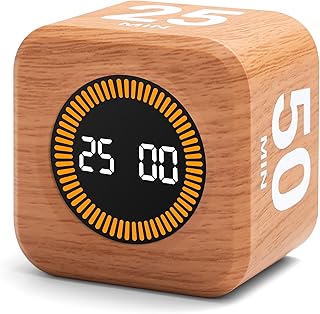
This wood-grain rotating productivity cube is another tactile timer aimed at making focus sessions simple and unobtrusive. With the same popular presets (5, 10, 25, 50 minutes) and a gravity sensor that starts timing when the cube is flipped, it leans into ritual as a productivity cue — great for people who want an analog nudge without screens.
Main benefits: the wood-grain finish offers a warmer aesthetic than plastic timers and can blend into a home office. The gravity sensor removes button hunting: flip the cube to begin a session and flip again to pause or reset. Mute functions and volume control mean it’s office- or family-friendly, while preset durations align with common study and work intervals.
Real-life use cases: a remote project manager uses 50-minute windows for focused planning and 10-minute breaks for quick stand-ups; a parent working from home flips the cube to signal “heads-down” time while kids do independent activities; an online tutor uses the timer to structure lessons and breaks for younger students.
Why this product is valuable: compared with app timers, this cube encourages a physical routine that can help overcome resistance to starting tasks. Compared with other desktop timers, the gravity sensor and aesthetic finish make it both a design-friendly and functional choice for home workspaces.
Buying considerations: if you want tracking and analytics, look for software solutions instead — this cube is about behavior, not metrics. Check battery life and how sensitive the gravity sensor is; some users prefer a firmer flip to avoid accidental triggers. If you need multiple timers running concurrently, a single-cube solution may feel limiting.
Who should buy: people who prefer tactile rituals, home workers who want an attractive desk accessory, and educators structuring lessons. Who may not need it: those who want app integrations or multi-session analytics.
Pros: attractive wood-grain finish, gravity-activated flip start, mute functions for quiet settings. Cons: no logging or app sync, may trigger accidentally if knocked over.
Ready to add a stylish productivity cube to your desk? Check the latest price on Amazon.
Pros
- Attractive wood-grain design that fits a home office
- Gravity sensor for flip-to-start convenience
- Mute functions for quiet environments
Cons
- No app or logging capabilities
- Can be accidentally triggered if bumped
Like the look of a wood-grain productivity cube? Check the latest price on Amazon.
Elgato Stream Deck Mini – Control Zoom, Teams, PowerPoint, MS Office and Boost Productivity with Seamless Integration for Daily Apps, Set Up Shortcuts Easily, USB, Compatible with Mac and PC

Best For:
Professionals and creatives who run repetitive desktop tasks and want one-touch automation.
Image: https://m.media-amazon.com/images/I/61w+a4IDpsL._AC_UL320_.jpg
For remote workers who want to automate repetitive desktop tasks, the Elgato Stream Deck Mini offers a small, programmable control surface with six customizable keys. It’s gained popularity beyond streamers because its macro-driven workflow shortcuts can streamline common remote-work needs: mute/unmute in Zoom, switch camera scenes, launch apps, or fire off multi-step keyboard shortcuts.
Main benefits: the heart of the Stream Deck Mini is its software-driven buttons. Using Elgato’s configuration app, you assign actions, multi-action sequences, and app integrations to physical keys that give one-tap control over frequent tasks. The tactile feedback and visual icons make it faster than hunting through menus, and the USB connection keeps setup simple.
Real-life use cases: a marketing coordinator configures keys to open email templates, start a Zoom meeting and launch a slide deck in sequence; a customer success rep mutes audio and toggles a canned response with a single press during calls; a remote developer uses it to run builds, open terminals and trigger scripts without typing repetitive commands.
Why it’s valuable: compared with keyboard shortcuts or complicated automator apps, the Stream Deck Mini makes automation discoverable and mistake-proof. The visual key icons reduce cognitive load and help guests or co-workers use the device without training. It’s a compact, tactile way to speed up recurring workflows.
Buying considerations: the Mini has six buttons — power users may prefer larger Stream Deck models if they need many macros. Also confirm macOS or Windows compatibility and whether the particular apps you rely on have existing plugins or integrations. While it’s USB-powered, placement and cable routing are practical considerations for neat desks.
Who should buy: professionals and creatives who run repetitive desktop tasks and value shortcut-driven efficiency. Who may not need it: casual users who rely on occasional shortcuts or those satisfied with in-app hotkeys.
Pros: powerful macro customization, easy visual setup, tactile one-touch control. Cons: limited to six keys on the Mini model, requires some setup time to create useful macros.
Ready to automate repetitive tasks and speed up your workflow? Check the latest price on Amazon.
Pros
- Highly customizable macros for repetitive workflows
- Visual keys reduce cognitive load and speed task switching
- Plug-and-play USB setup with intuitive configuration software
Cons
- Only six buttons on the Mini; larger models for power users
- Requires initial setup to build useful macros
Want to automate your desktop tasks with one-touch shortcuts? Check the latest price on Amazon.
Final Verdict
A small set of well-chosen gadgets can transform a remote-workday from scattered to streamlined. For teams that need reliable attendance and accountability, the uAttend DR2000 brings cloud reporting and touch-free biometric options. If presentations are a frequent part of your role, a dependable 2.4GHz presenter like the QUI clicker keeps slide flow and audio control in your hand. For focus and attention, two tactile Pomodoro-style timers — the rotating preset model and the wood-grain flip cube — offer different blends of behavior-first design and aesthetics. And for anyone who handles repetitive desktop tasks, the Elgato Stream Deck Mini provides a compact, programmable shortcut pad that reduces friction and errors.
Match the gadget to your most annoying daily problem and you’ll get the most value: accountability for time tracking, confidence for presenting, ritual for focus, and automation for repetitive work. Consider compatibility, privacy (for biometric gear), and whether you prefer data-rich tools or simple behavioral nudges. Pick one or two that fit your routine and treat them as experiments — small habits compound into big productivity gains.
Check the latest price on Amazon.
Conclusion
These Productivity Gadgets for Remote Workers picks are trending now and offer great value and variety. Check the links above for latest prices and reviews.
As an Amazon Associate, I earn from qualifying purchases.
Tags:
productivity gadgets, remote work tools, Pomodoro timer, presentation clicker, time clock, stream deck, home office accessories
