Dorm Gadgets Creators Use for Remote Classes
As an Amazon Associate, I earn from qualifying purchases. This article may contain affiliate links, which means we may receive a commission at no extra cost to you.
Remote classes, studio sessions, and live demos demand tools that are compact, reliable, and easy to set up in a dorm-room workflow. Whether you’re a teaching assistant running weekly discussion sections, an art student demonstrating sketch techniques over Zoom, or a content creator streaming study-with-me sessions, a small document camera plus a simple slide advancer can dramatically improve how you present materials and interact with students. This guide highlights a handful of dorm-friendly document cameras and a wireless presenter that creators actually choose when they need clarity, portability, and straightforward compatibility.
Before we dive into the recommendations: As an Amazon Associate, I earn from qualifying purchases. This article may contain affiliate links, which means we may receive a commission at no extra cost to you. The choices below are based on product specifications, widely reported user experiences, and the practical needs of remote teaching and content creation—no implied hands-on testing is claimed.
In the sections that follow you’ll find detailed descriptions of each product, who it’s best for, real-life use cases, and the pros and cons people report most often. I also include a buying guide that helps you compare features like manual versus autofocus, built-in microphones, lighting, and how easy each device is to fold away between classes. If you teach, tutor, or create from a small space, these picks are tailored to balance quality and dorm-room convenience.
Buying Guide
When you’re buying a document camera or a presentation clicker for dorm-life remote classes, consider four core things: image clarity and focus, portability and setup, audio and lighting, and compatibility with your laptop or platform.
Image clarity and focus: For note-taking sessions, art demos, or close-up demonstrations, the effective resolution matters. Some visualizers advertise 4K or 8MP sensors; that extra detail helps when you need to show small text, intricate sketches, or lab samples. However, remember that streaming at 4K requires more processing power and a stable internet connection. Many students and instructors find that 720p–1080p is the practical sweet spot for live Zoom classes because it balances bandwidth and clarity. Manual focus models give you full control over depth of field, while autofocus cameras are better if you move objects frequently or switch work surfaces often.
Portability and setup: Dorm life is all about limited space. Foldable designs and low-profile bases let you pack the camera into a backpack or tuck it away when you’re not teaching. Look for a lightweight arm and a compact footprint. USB plug-and-play devices that don’t require separate power bricks or complex driver installs are ideal—especially when you switch between macOS, Windows, and Chromebooks.
Audio and lighting: Built-in microphones are convenient for quick sessions, but their pickup is usually basic. If you need podcast-level audio, plan to use an external mic later. Some document cameras include multi-level LED lights to illuminate flat materials without casting harsh shadows; this is especially useful for scanning textured surfaces like paper, watercolors, or model parts.
Compatibility and software: Confirm the camera supports your OS and conferencing tools. Many of the dorm-friendly visualizers advertise explicit compatibility with macOS, Windows, and Chrome OS. Also check whether the manufacturer provides a companion app for image rotation, whiteboard mode, or snapshot capture. These small features—image invert, 90-degree rotation, or snapshot/record buttons—make classroom workflows faster.
Practical tradeoffs: If you plan to use the camera for high-resolution recording (for uploaded tutorials), pick a higher-megapixel unit. For daily live classes and portability, a compact USB 1080p device with manual focus and foldable design often offers the best balance. The clicker you pair with it should have responsive slide control, a visible battery indicator or long battery life, and compatibility with Keynote, PowerPoint, Google Slides, and remote OS systems.
Buying considerations checklist:
– Desired streaming resolution vs. your internet bandwidth
– Manual focus vs. autofocus for your use case
– Built-in mic quality and whether you’ll get an external mic later
– Foldable design and storage size for dorms
– Compatibility with macOS, Windows, and Chrome OS
– Lighting features (LED levels, image invert) for overhead demos
– Warranty, return policy, and seller reputation
Below you’ll find five products chosen to represent different balances of price, portability, and features. Each product entry explains who it’s best for and practical scenarios to help you pick the right tool for your remote-class routine.
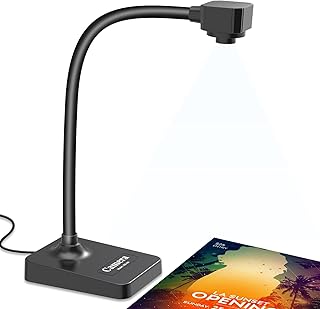
USB Document Camera for Teachers, Webcam for Distance Learning,Manual Focus Camera,with mic,Fold for Mac OS, Windows, Chromebook Compatible for Web Conferencing, Remote Teaching,Live Demo,visualizer
Best For:
Dorm-based tutors, teaching assistants, and creators who need a compact, foldable USB visualizer with manual focus for close-up demonstrations.
This USB document camera is a solid pick for students and early-career instructors who need a fuss-free visualizer for remote classes. It emphasizes a foldable, compact design and manual focus control, which makes it easy to position over notes, handouts, or small art projects in a cramped dorm desk setup. The built-in microphone is handy for quick lectures and office-hours sessions when you don’t want to attach an external mic. According to product specifications and reported user experiences, the camera is plug-and-play across Mac OS, Windows, and Chromebooks—so switching between a MacBook Air for lectures and a school Chromebook for quick demos shouldn’t require reinstalling drivers.
Main benefits include portability and straightforward control: the folding arm stores neatly, and manual focus gives you the fine control needed when showing detailed sketches or small-print documents. For creators who draw or annotate with pens, manual focus can prevent the camera from hunting or shifting focus during a live draw-along. Compared with a basic laptop webcam, this device offers closer framing, overhead angles, and a wider field of view for capturing whole worksheets or book pages.
Real-life usage examples: set it above a textbook page to walk students through an example problem during discussion sections; use it to demonstrate a step-by-step art technique while you narrate; or position it over a prototype for quick product reviews or project check-ins. Because it folds flat, you can slide it under your mattress or into a locker between classes.
Who this product is for: students who tutor classmates online, teaching assistants running small lab demonstrations, or creators recording time-lapse drawing videos who prioritize portability and precise focus control. Who may not need it: educators who require built-in high-fidelity audio for lectures (they’ll want a dedicated microphone) or those who need automatic focus for fast-moving demonstrations.
Buying considerations: check your streaming platform’s resolution settings and remember that lighting in a dorm can affect image quality—investing in a small desk lamp or a camera with multi-level LED lighting can help. Confirm Chromebook compatibility for school-managed devices; in many cases these USB visualizers work without extra drivers.
Check the latest price on Amazon.
Pros
- Foldable, space-saving design ideal for small desks
- Manual focus for precise control over close-up shots
- Plug-and-play compatibility with macOS, Windows, Chromebook
Cons
- Built-in mic is functional but not studio quality
- Manual focus requires occasional adjustment during dynamic demos
Check the latest price on Amazon.
AlKOR USB Document Camera for Teaching & Distance Learning,Manual Focus Webcam with Mic, Foldable Design for Mac OS/Windows/Chromebook-Online Classes, Web Conferencing & Live Demos,Remote Work

Best For:
Teachers, tutors, and creators seeking a rock-solid, easy-to-store USB visualizer with manual focus.
The AlKOR USB Document Camera is very similar in spirit to other compact visualizers but often stands out for a particularly simple user interface and a stable foldable arm. It’s a practical choice if you value reliability and quick setup over bells-and-whistles. The manual focus lets you dial in sharp detail for handwritten notes or printed documents, and the built-in mic covers standard Zoom or Google Meet sessions without extra cables.
Compared with a smartphone held over your desk, this dedicated device offers steadier framing and a native USB connection that reduces the hassle of awkward mounts or overheating phones. Many users report that the foldable design stores conveniently in a backpack and that the camera pairs cleanly with popular platforms and classroom software. If you rotate between devices—say, using a Windows laptop in class and a Chromebook in study rooms—this camera’s broad compatibility removes a frequent stumbling block.
Real-life scenarios where this camera shines include: grading sessions where you want to share student work side-by-side on a call; live math walkthroughs where you need to shift between a problem sheet and worked solutions; and creative tutorials where showing brush strokes or pencil line weight requires a stable overhead view. The manual focus is especially useful for creators who prefer to set and forget the depth of field for an entire session.
Who should buy: instructors and tutors who host frequent small-group sessions and want a dependable, compact camera that won’t need frequent reconfiguration. It’s also a good choice for creators who prioritize an uncluttered desk and portability. Who may skip it: presenters who need advanced recording features like integrated multi-level lighting or image-invert functions; those might prefer higher-end visualizers.
Buying tip: pair with a small LED desk light if your dorm’s overhead lighting is dim—the camera will capture much clearer detail with consistent, diffused light.
Check the latest price on Amazon.
Pros
- Very stable foldable arm for consistent framing
- Simple plug-and-play setup across major OS
- Good alternative to awkward smartphone mounts
Cons
- Lacks advanced lighting controls found on premium models
- Manual focus not ideal for fast-moving subject matter
Check the latest price on Amazon.
Document Camera for Teachers and Classroom, Gawervan USB Webcam/Doc Camera Built-in Mic— Mac OS, Windows, Chromebook Compatible for Live Demo, Web Conferencing, Distance Learning, Remote Teaching

Best For:
Faculty, student presenters, and creators wanting an approachable, plug-and-play document camera for everyday demos.
The Gawervan USB document camera is positioned as a classroom-friendly visualizer that balances ease-of-use with useful features for everyday teaching. It supports Mac OS, Windows, and Chromebooks and includes a built-in mic for quick voice pickup during live demos. Based on product details and typical buyer feedback, the camera performs well when you need reliable overhead shots for lesson walkthroughs, lab demonstrations, or portfolio reviews.
Where this model differentiates itself is in how user-friendly it feels out of the box. Many instructors appreciate a camera that integrates with popular conferencing platforms without extra configuration, and Gawervan tends to be praised for that. Compared with cheaper webcam-only alternatives, a dedicated document camera like this gives you flexible mounting angles and closer framing, so you can show a whole page or zoom into specific areas without awkward laptop juggling.
Practical scenarios include: recording step-by-step homework solutions for an asynchronous lesson; showing physical models during a remote studio critique; or scanning annotations live while discussing a collaborative document. The built-in mic handles spoken narration for short sessions, although for regular long lectures an external microphone will provide clearer audio.
Who it’s best for: faculty members who need a consistent classroom-style setup, student presenters who rotate between dorm and lecture hall, and content creators who value quick setup. Who may not need it: those with high-end production needs who require external lighting suites or XLR microphones.
Buying observations: confirm the camera’s field-of-view for the size of materials you plan to show (A4 vs A3 pages), and check whether your conferencing platform supports the camera as a video source without additional drivers. If you need more control over lighting, add a small LED panel for shadow-free illumination.
Check the latest price on Amazon.
Pros
- Straightforward compatibility with major operating systems
- Convenient overhead angles for pages and small objects
- Built-in mic simplifies quick demos
Cons
- Microphone quality is adequate but not broadcast-grade
- May need additional lighting for best image clarity
Check the latest price on Amazon.
THUSTAR 8MP Document Camera & Webcam 4K with Dual Microphones, USB Visualiser A3-Size, 3-Level LED Lights, Image Invert Function, Fold, for Live Demo, Distance Education -Windows, macOS and Chrome OS

Best For:
Creators and instructors who need higher-resolution capture, built-in lighting, and a larger A3 capture area for detailed tutorials and portfolio work.
The THUSTAR 8MP document camera is a step up in capability for creators who want higher-resolution captures and more built-in controls. With an 8MP sensor that supports 4K capture modes and a physical foldable design, this unit is aimed at users who occasionally record higher-resolution tutorials or need to show A3-sized pages without loss of detail. The inclusion of dual microphones provides better ambient pickup than single-mic designs, and the three-level LED lighting system helps reduce shadows and bring out fine textures—useful for art critiques, close-up craft demonstrations, or showing fabric samples.
Compared with the simpler manual-focus models, the THUSTAR offers more integrated features you’d expect from a mid-range visualizer: image-invert for transparent materials or overhead projection, multi-level LED light to match room brightness, and a wider capture area for larger documents. These extras make it a more versatile studio-style camera while still folding down for dorm storage.
Real-life use cases: recording a detailed fabric dyeing tutorial where color fidelity matters; streaming a lab demonstration with near-document clarity; digitizing larger student projects for portfolio review without moving them to a scanner. For creators who also upload recorded lessons, 4K capture gives you a sharper master file to crop and repurpose into social clips.
Who should buy it: creators and instructors who need higher resolution and built-in lighting without going to a full overhead rig. If you frequently show larger materials or want to record crisp tutorial videos, the THUSTAR’s extra features are worth the step up. Who may not need it: casual tutors or students who simply stream short sessions—1080p foldable cameras can be lighter on budget and bandwidth.
Buying considerations: 4K files are large—ensure your laptop has enough processing capacity and your workflow can handle larger recordings. Also, take advantage of the LED levels during low-light dorm evenings to reduce noise and shadowing.
Check the latest price on Amazon.
Pros
- 8MP sensor with 4K capture for crisp recordings
- Three-level LED lights reduce shadows and improve detail
- Dual microphones for better audio pickup than single-mic units
Cons
- Larger files and higher CPU demand when using 4K
- Slightly bigger footprint than the most compact models
Check the latest price on Amazon.
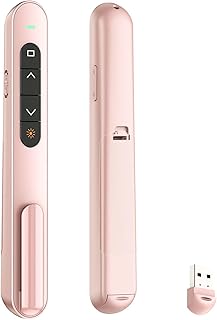
QUI Presentation Clicker with Volume Control, 2.4GHz USB Wireless Presenter Remote, PowerPoint Clicker Slide Advancer Compatible with Mac, Windows, Google Slides, Keynote
Best For:
Student presenters, TAs, and creators who need reliable remote slide control and volume adjustments during live or recorded sessions.
A reliable presenter remote is an often-overlooked dorm gadget that instantly improves your presence during remote classes and hybrid lectures. The QUI presentation clicker pairs a tactile slide advancer with 2.4GHz wireless for low-latency control—so you can move through slides from across a studio, couch, or lecture podium. The inclusion of volume control is a thoughtful extra for live sessions where you might be playing video clips or switching between audio sources.
Compared to keyboard or trackpad slide control, a wireless presenter feels more natural and lets you focus on the content instead of fumbling with your laptop. For creators who film mini-lectures or record multi-camera tutorials, a clicker helps you coordinate slides while demonstrating with a document camera at a separate station. The USB receiver is plug-and-play on Windows and macOS, and many users report seamless integration with PowerPoint, Google Slides, and Keynote.
Real-life uses include: pacing a live lecture while standing and annotating a whiteboard; recording a talk where you narrate slides and switch to a document camera for closeups; and giving an in-person campus presentation that needs remote slide control without a phone app or Bluetooth pairing fuss.
Who should buy: student presenters, teaching assistants, seminar leaders, and creators who frequently use slide decks alongside overhead demos. Who may not need it: users who only present from a single seated workstation and are comfortable using keyboard shortcuts.
Buying tip: check the clicker’s range and battery type (rechargeable vs. AAA) in product specifics. For dorm use, a small dongle that stores in the clicker is convenient so you don’t lose the USB receiver.
Check the latest price on Amazon.
Pros
- 2.4GHz wireless for responsive slide control
- Built-in volume control for multimedia presentations
- Works with PowerPoint, Google Slides, and Keynote
Cons
- May add another USB dongle to carry
- Range can vary in crowded Wi-Fi environments
Check the latest price on Amazon.
Final Verdict
Choosing the right dorm-friendly visual setup comes down to understanding how you teach or create. If your sessions are short and you prioritize simplicity and portability, a compact manual-focus USB document camera (like the first two picks) will serve you well: they’re foldable, simple to store, and reliable for close-up demos. For creators who need higher fidelity—larger capture areas, multi-level lighting, and sharper recordings—the THUSTAR 8MP model offers features that scale up your recorded output while still folding down for dorm storage. The Gawervan model sits between those poles, offering approachable setup and dependable classroom use.
Don’t underestimate the presentation clicker: a small wireless remote with slide control and volume adjustment smooths the flow of any live or recorded lesson and pairs naturally with a document camera to produce a more professional presentation. When shopping, prioritize compatibility with your operating system, the type of focus and resolution you need, and whether you’ll later add an external microphone or light panel. If bandwidth is limited, stick to 720p–1080p for live streams and reserve 4K for recorded material.
If you’re still deciding, start with a foldable 1080p camera plus the QUI presenter—the combination covers most dorm-classroom workflows without overcomplicating setup. If you find yourself producing more recorded tutorials or showing larger projects, consider upgrading to the THUSTAR for higher-resolution captures and better integrated lighting.
Whichever option you choose, these tools are designed to make remote teaching and content creation from small spaces more professional and less stressful. Ready to upgrade your dorm workflow? Check product pages linked above to compare specs and pick the device that best fits your routine.
Check the latest price on Amazon.
Conclusion
These Dorm gadgets creators use during remote class routines picks are trending now and offer great value and variety. Check the links above for latest prices and reviews.
As an Amazon Associate, I earn from qualifying purchases.
Tags:
document camera, remote teaching, dorm gadgets, distance learning, presentation clicker, USB visualizer, online classes
