Best Affordable Wireless Presentation Remotes
As an Amazon Associate, I earn from qualifying purchases. This article may contain affiliate links, which means we may receive a commission at no extra cost to you.
As an Amazon Associate, I earn from qualifying purchases. This article may contain affiliate links, which means we may receive a commission at no extra cost to you.
If you give presentations regularly — in class, at client meetings, or on the conference stage — a small, reliable wireless presenter can make a big difference. Affordable wireless presentation remotes remove the need to stand next to your laptop, let you control slides smoothly, and often include handy extras like a laser pointer or volume control. This guide focuses on budget-friendly models that balance dependable wireless performance with simple, intuitive controls. Rather than promoting gimmicks, I’ve focused on remotes that are easy to pair, compatible across platforms (Windows, macOS, Linux) and work well with common apps like PowerPoint, Google Slides and Keynote.
Below you’ll find a clear buying guide followed by detailed write-ups of five well-reviewed, affordable presentation clickers. Each product section explains who it’s best for, practical use cases, common strengths and weaknesses reported by other buyers, and a friendly call-to-action to check the latest price on Amazon.
Buying Guide
What to look for in an affordable presentation remote
Range and wireless type: Cheap presenters typically use either 2.4GHz RF (with a USB receiver/dongle) or Bluetooth. RF dongles tend to be plug-and-play across Windows and macOS and offer more consistent range in rooms with Wi‑Fi noise. Bluetooth avoids using a USB port but may require pairing in some environments.
Compatibility: Make sure the remote explicitly lists compatibility with your platform. Most budget clickers work with PowerPoint, Google Slides, and Keynote in basic slide-advance/back modes, but advanced features (gesture control, app-specific shortcuts) can vary.
Pointer and controls: A red laser pointer is common on budget models and is useful in classrooms and small conference rooms. Look for intuitive, tactile buttons for next/previous slide, a blank-screen or black-screen function, and volume control if you often play embedded video or audio.
Battery and power: Many affordable remotes use AAA or AA batteries; some models include rechargeable batteries or charge via micro-USB/USB-C. Rechargeables save money over time but check reported battery life in reviews.
Build and portability: A lightweight, pocketable design matters if you travel. A USB receiver that stows inside the unit or clips to the back is a convenient touch you’ll appreciate.
Ease of use: Plug-and-play dongles that auto-map to system keyboard shortcuts are the least frustrating. For Bluetooth remotes, check how many steps pairing requires and whether the remote re-pairs consistently.
Why a cheap remote can be enough: If you only need basic forward/back and a laser pointer, inexpensive models cover that reliably. Paid models add polish — longer range, programmable buttons, or gyroscopic cursor control — but most day-to-day presenters don’t need those extras.
How I evaluated options: The recommendations below are based on product specs, manufacturer claims, and patterns in user feedback. I focused on remotes that frequently appear in budget-friendly categories and that users report as dependable in classrooms, small auditoriums, and meeting rooms.
Presentation Clickers for PowerPoint, Clicker for Laptop Presentations Remote, USB Wireless Presenter Remote, Power Point Remote Clicker for Computer/Mac/PPT/Google Slide Advancer

Best For:
Teachers, students, and business professionals who want an easy plug-and-play presenter with a laser pointer and simple forward/back controls.
This compact presentation clicker is aimed at users who need a no‑frills, plug‑and‑play remote for slide control. It pairs with a tiny USB receiver and advertises broad compatibility with common presentation software (PowerPoint, Google Slides, Keynote) and operating systems (Windows, macOS). The design emphasizes simplicity: tactile forward and back buttons, a dedicated laser pointer, and sleep mode to preserve battery life.
Why it stands out on a budget: Many customers choose this model because it balances a familiar button layout with a reliable 2.4GHz connection. Unlike Bluetooth-only remotes, the included USB dongle usually requires no driver installation — you plug it into a laptop, and the system recognizes it as an input device. That makes it a safe choice for presenters who can’t spend time on pairing at the start of a meeting or lecture.
Real-world usage scenarios: Teachers managing slides while moving around a classroom will appreciate the straightforward controls and visible laser pointer for highlighting content on projected screens. Consultants and students who jump between rooms can tuck this clicker into a pocket or laptop bag; the dongle is small enough to stay plugged into many ultrabooks without blocking adjacent ports. During meetings with embedded videos or audio, users should confirm whether the unit offers volume buttons; this particular model focuses primarily on slide advancement and laser pointing.
Customer feedback patterns: Reviewers often highlight the plug‑and‑play convenience and solid button feedback. Occasional complaints relate to range limitations in very large auditoriums and the use of replaceable batteries rather than an internal rechargeable cell. Many note that the dongle stores inside the remote or clips into a recess — a practical feature that reduces the risk of losing the receiver.
Who should buy this: Choose this clicker if you want dependable slide control with minimal setup. It’s ideal for educators, students, and business professionals who need a budget-friendly tool to move smoothly through presentations without fuss.
Who might skip it: If you need Bluetooth-only connectivity, programmable buttons, or advanced cursor control, look at higher-end models.
Check the latest price on Amazon.
Pros
- Plug-and-play USB dongle — no drivers usually required
- Compact, pocketable design with storable receiver
- Tactile buttons and visible laser pointer for highlighting
Cons
- Limited advanced controls (no programmable buttons)
- Replaceable batteries instead of built-in rechargeable
Check the latest price on Amazon.
Wireless Presentation Clicker for PowerPoint Presentations, USB Dongle Presenter Remote with Laser Pointer Slide Clickers for Mac/Windows/Linux, Computer/Laptop, Google Slide/PPT/Keynote

Best For:
Cross-platform presenters, professors, and office professionals who prefer dongle-based reliability and comfortable ergonomics.
This USB-dongle-based presenter is marketed toward cross-platform users who need reliable slide navigation and a bright laser pointer without paying for premium features. The unit appears to focus on robust RF connectivity, a comfortable ergonomic body, and intuitively labeled buttons for next/previous slide, start/end presentation, and a laser activator.
Practical benefits: The RF connection on this model reduces the chance of intermittent Bluetooth pairing problems, which is why many office users prefer dongle-based remotes. The ergonomic shape helps presenters hold the clicker for longer sessions without hand fatigue, and the laser pointer is handy for drawing attention to chart data or product photos. Users who frequently present on Linux or less common systems often appreciate the straightforward keyboard-emulation approach, which maps the remote’s buttons to system input events instead of relying on app-specific plug-ins.
Typical use cases: A product manager presenting quarterly results will find the dedicated start/end presentation buttons helpful when moving from the projector to a podium. Professors running back-to-back lectures can rely on quick plug-in setup in shared classrooms. Small business owners pitching to clients will like the feel of the buttons and the visible laser on dimmed conference room screens.
What users report: Buyers commonly praise the dependable two-way slide control and the comfortable grip. Some reviewers mention the dongle is small enough to remain inserted in a laptop without blocking ports, while critiques sometimes focus on limited range in very large rooms and the absence of rechargeable power in some variants. Several users also advise testing the pointer’s visibility in your specific projection environment (laser color and projector brightness affect perceived visibility).
Who should buy this: Ideal for cross-platform presenters who want reliable RF performance and an ergonomic remote for regular use.
Who might skip it: If you require Bluetooth-only workflows or extensive programmable controls, consider other models.
Check the latest price on Amazon.
Pros
- Robust RF connection with minimal pairing fuss
- Ergonomic design reduces hand fatigue
- Useful start/end presentation buttons
Cons
- Range may be limited in very large venues
- May rely on replaceable batteries rather than rechargeable
Check the latest price on Amazon.
Presentation Clicker Wireless Presenter Remote for PowerPoint, Powerpoint Clicker with Volume Control PowerPoint Slide Advancer for Mac, Computer, Laptop

Best For:
Presenters who regularly play embedded video or audio and want volume control built into the presenter to avoid returning to the laptop.
This presenter differentiates itself by including integrated volume control alongside standard slide navigation and a laser pointer. That small addition makes it more versatile in meeting rooms where audio/video is part of the presentation. By combining slide advancer buttons with volume up/down and a mute toggle, it reduces the need to return to your laptop during multimedia segments.
Real-life benefits: If your presentations mix slides with embedded video clips, the volume controls save time and maintain audience engagement by letting you adjust sound levels smoothly without interrupting flow. For classroom instructors who play educational videos, the ability to quickly mute or reduce volume is also a practical classroom management tool.
Compatibility and connectivity: The unit lists support for common platforms (Mac and Windows) and typically uses a USB receiver for 2.4GHz RF connection, so it retains plug-and-play convenience for most systems. Users report that the layout places volume controls within thumb reach, enabling subtle adjustments during live playback without fumbling.
Use-case scenarios: A marketing lead delivering a multimedia pitch can step away from the podium to address the audience while syncing slide transitions and audio. A trainer running remote or hybrid sessions can rapidly react to audio feedback (participants too loud, embedded clips too quiet) and adjust levels without pausing. Students presenting capstone projects involving short videos will also find this convenience helpful.
What reviewers say: Positive comments often note that adding volume control is a sensible, underappreciated feature that adds value on top of basic slide control. Some buyers call out the build quality and button responsiveness as solid for the price category. On the downside, a few users mention that the volume buttons can feel too similar to slide buttons at a glance, so a period of familiarization is recommended before a live talk. Battery life and range reviews vary, with the usual caveats about very large venues.
Who should buy this: Choose this remote if you frequently present multimedia and want integrated volume controls to keep your presentation flow smooth.
Who might skip it: If you never play audio or video during talks and prefer the simplest possible remote, a more minimal unit could be lighter and cheaper.
Check the latest price on Amazon.
Pros
- Integrated volume control for multimedia presentations
- Thumb-friendly layout for quick adjustments
- Plug-and-play USB connectivity
Cons
- Volume buttons may need familiarization to avoid accidental presses
- Range and battery life vary by usage
Check the latest price on Amazon.
Wireless Presenter, Hyperlink Volume Control Presentation Clicker RF 2.4GHz USB PowerPoint Clicker Presentation Remote Control Pointer Slide Advancer (Black)

Best For:
Schools, nonprofit groups, and organizations that need reliable, familiar plug-and-play presenters for shared rooms and frequent use.
This longtime bestseller occupies a niche for reliable, no-nonsense RF presenters. It commonly appears in lists of go-to budget clickers because of its straightforward 2.4GHz dongle-based connection, easy-to-read button layout, and an audible or tactile click that reassures users during transitions. The model’s simple feature set — slide forward/back, laser pointer, and often volume control or a blank-screen toggle — matches the needs of many everyday presenters.
Why it has staying power: The core advantage here is familiarity. Many institutions buy this style because IT staff and instructors are already comfortable with the plug‑and‑play behavior. The receiver typically maps to keyboard shortcuts, which reduces app-specific compatibility issues. For shared classrooms or libraries of equipment, standardization minimizes setup problems.
Examples of use: A school district purchasing remotes for multiple classrooms will value the predictability and low learning curve. Community speakers and volunteer organizations that rely on donated or low-cost gear find the unit’s simplicity a good fit; volunteers can walk into a venue, plug the dongle in, and start presenting with no training. In smaller theaters and meeting rooms, the laser pointer helps stage managers and speakers coordinate cues.
Reported strengths and weaknesses: Review patterns show high marks for durability and reliability across many users. Some negative feedback points to limited range in very large lecture halls and the absence of modern features like Bluetooth or app integration. Battery type varies by production batch — some versions run on AAA batteries, while others may include a rechargeable element — so check the product details before buying.
Who should buy this: Institutions, churches, clubs, and educators who want a consistent, easy-to-support presenter that won’t complicate setups.
Who might skip it: If you need modern connectivity (Bluetooth), advanced programmability, or ultra-long range, a higher-end model may be necessary.
Check the latest price on Amazon.
Pros
- Proven, familiar 2.4GHz dongle reliability
- Durable, easy-to-use button layout
- Good institutional fit for shared equipment
Cons
- Lacks modern Bluetooth connectivity
- Range may be insufficient in large auditoriums
Check the latest price on Amazon.
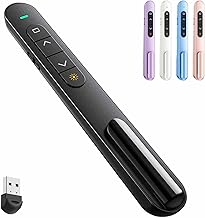
QUI Presentation Clicker with Volume Control, 2.4GHz USB Wireless Presenter Remote, PowerPoint Clicker Slide Advancer Compatible with Mac, Windows, Google Slides, Keynote
Best For:
Small business owners, lecturers, and frequent presenters who want compact portability plus volume control and reliable USB dongle connectivity.
This QUI-branded presenter combines a compact footprint with feature-focused controls such as slide navigation, laser pointer, and dedicated volume buttons. The 2.4GHz USB receiver aims for quick set-up and consistent responsiveness. The unit is appealing to users who want a touch more functionality than the most basic models without stepping up to premium pricing.
Practical advantages: Buyers often appreciate the clean balance of buttons — clearly labeled keys for next/previous, a laser toggle, and separate volume control. The presenter’s size makes it easy to carry in a laptop bag or leave on a presentation lectern without clutter. The RF connection is less susceptible to interference than some Bluetooth setups, and the USB dongle typically requires no software.
Typical use scenarios: Small business owners running client demos will like being able to dim or mute audio between demos. College lecturers who alternate between slide content and short video clips can use the volume controls to keep multimedia portions crisp and unobtrusive. The laser is bright enough for standard classroom projectors and small conference rooms.
User feedback highlights: Reviewers frequently cite good value for money and consistent operation across Mac and Windows machines. Some purchasers caution about range limits in very large rooms and recommend testing the laser visibility on your specific projector and screen. The build material is usually lightweight plastic; while that keeps costs down, a few users note that heftier models feel more premium.
Who should buy this: If you want a compact presenter with the practical bonus of volume control and a reliable USB dongle, this model is a sensible mid-budget choice.
Who might skip it: Presenters who require programmable macro buttons, Bluetooth pairing, or a metal-bodied, premium-feel unit may want to look at higher-end alternatives.
Check the latest price on Amazon.
Pros
- Good balance of useful features (laser + volume)
- Compact and portable
- Reliable 2.4GHz USB dongle
Cons
- Plastic construction may feel less premium
- Limited range in very large venues
Check the latest price on Amazon.
Final Verdict
Affordable presenters cover most everyday presentation needs. For simple slide control and a laser pointer, the plug-and-play dongle models offer the best blend of reliability and ease of use; they’re especially suited to classrooms, small meeting rooms, and client presentations. If you frequently play audio/video, opt for a presenter with built-in volume controls to keep your flow smooth. Bluetooth-only units are useful when you can’t spare a USB port, but for the few dollars saved, USB RF presenters tend to be more consistent in mixed-technology environments.
Across the five models above you’ll find a clear gradient: basic, dependable clickers for minimalists; ergonomic dongle remotes for frequent presenters; and units that add volume control for multimedia-heavy talks. Consider your most common presentation setting (small classroom vs. large hall), whether you need multimedia control, and whether you prefer rechargeable batteries. Finally, check the USB port situation on your laptop and whether a tiny receiver left in place will obstruct adjacent ports.
If you want the simplest route to fewer interruptions and smoother delivery, pick a 2.4GHz dongle presenter with a visible laser and solid button layout. If multimedia is central to your talks, choose a model with volume control. Any of the recommended models above will be a step up from controlling slides from your laptop keyboard or trackpad — and they come at a price point that keeps them a practical, low-risk upgrade.
Happy presenting, and check the latest price on Amazon.
Conclusion
These Affordable Wireless Presentation Remotes picks are trending now and offer great value and variety. Check the links above for latest prices and reviews.
As an Amazon Associate, I earn from qualifying purchases.
Tags:
presentation remote, wireless presenter, PowerPoint clicker, USB presenter, laser pointer remote, presentation clicker, cheap presentation remote
