Top Gaming Gadgets Streamers Add After Setup Videos
As an Amazon Associate, I earn from qualifying purchases. This article may contain affiliate links, which means we may receive a commission at no extra cost to you.
If you’ve watched enough PC setup or streaming videos, you’ve probably noticed the same handful of gadgets showing up again and again—macro keypads, specialized lights, quirky snack tools and controllers that promise smoother production and fewer fumbling moments. These are the small buys people add after they’ve got the basics (PC, mic, webcam) in place to make streaming, content creation, or even remote work feel more polished and less chaotic. Before we dive into specific options, a quick note: As an Amazon Associate, I earn from qualifying purchases. This article may contain affiliate links, which means we may receive a commission at no extra cost to you.
This guide looks at five of the most common and useful add-ons people pick up after following setup videos. Each product section covers who it’s for, practical ways you’ll use it in daily sessions, how it stacks up against common alternatives, and realistic pros and cons to help you decide. Whether you want smoother production controls, better lighting, or even a cleaner snack solution to avoid greasy controllers, these picks address problems many streamers and remote workers actually face.
Buying Guide
Why people keep adding gadgets after setup videos: When your basics are working, incremental upgrades deliver outsized benefits. Macro keypads reduce alt-tabbing and clumsy hotkey juggling; a dedicated key light improves perceived video quality without redoing the whole room setup; and small convenience items stop tiny disruptions from derailing a session.
How to choose what to add first
– Identify the friction: Are you constantly muting/unmuting, fumbling with OBS scenes, or disappointed by your webcam lighting? Pick a gadget that directly addresses the most frequent annoyance.
– Compatibility matters: Check OS support and software requirements. Many macro devices advertise Windows and Mac compatibility, but advanced features sometimes need vendor drivers or specific OBS integrations.
– Workspace footprint: Stream controllers and lights require desk or clamp space. If you have a cramped desk, prioritize compact or clamp-mounted solutions.
– Learning curve vs. payoff: More programmable buttons mean more setup time. If you want instant benefits, pick a product with intuitive presets or simple drag-and-drop programming.
– Build quality and daily use: Look for tactile keys and sturdy knobs for controllers, and flexible mounting and even color range for lights. Cheap accessories can save money up front but may frustrate quickly.
Common alternatives and what they lack
– Standard keyboard macros vs dedicated macro keypads: Keyboards can handle macros but often lack the visual labels, tactile knobs, and separate interface that controllers offer.
– Ring lights vs desk key lights: A ring light can produce broader illumination but needs room space; desk key lights with goosenecks give directional control and reduce glare on monitors.
– DIY snacking solutions vs specialized tools: Using napkins or separate utensils works, but tools like snack chopsticks minimize greasy fingerprints on controllers and keyboards.
Final buying considerations
– Software ecosystem: If you use OBS, check how easily the device integrates with scene switching, source toggles, and soundboards. Devices that trigger OBS natively save a step.
– Expandability: Consider whether you might add more devices later—sticking to platforms that provide cross-device profiles helps.
– Returns and warranty: These devices are tactile—what feels right matters. Choose vendors or sellers with reasonable return policies so you can test the fit in your setup.
ActionRing Streaming Macro Keypad, Stream Controller Deck, Gaming Shortcut Keyboard, with 6 Customizable LCD Shortcut Keys, 3 Buttons and 3 Dials, Trigger Actions in OBS/Twitch/YouTube, For office workers and Content creaters,Windows 10/Mac14.0 (N3 Black)

Best For:
Streamers, podcasters, and office power users who need a compact, tactile control surface for scene and audio adjustments.
The ActionRing streaming macro keypad is designed for creators and power users who want a compact, visual control surface without the footprint of a full Stream Deck. It combines six small LCD shortcut keys with three tactile buttons and three adjustable dials, giving a blend of visual feedback and physical control. That mix makes it useful for quick scene changes, audio adjustments, and launcher macros without reaching for menus. Based on available specs and user reports, the LCD keys show icons you assign, which removes guesswork during live sessions and helps teams coordinate on shared setups.
Who will appreciate the ActionRing? Streamers who alternate between gameplay and chat, podcasters who need precise audio level adjustments, and office users running frequent macros will find the control layout intuitive. The dials are especially handy for on-the-fly volume control, transition fades, or fine-grain adjustments in video or audio software—features that a standard programmable keyboard lacks.
Practical use cases include instant OBS scene switching, muting/unmuting microphones during call-heavy days, toggling overlays or alerts on streams, and launching frequently used apps. If you collaborate with editors, you can map repetitive editing commands to keys and speed up workflows. The device’s small footprint makes it suitable for laptop desks or multi-monitor rigs where space is tight.
Compared with standard alternatives like the full-size Elgato Stream Deck, the ActionRing trades button count for a smaller desk presence and direct tactile controls. Where a Stream Deck may show more simultaneous options on a larger screen, the ActionRing’s dials and knobs can be faster for analog adjustments. Against using just keyboard shortcuts, it offers visual confirmation and dedicated hardware that avoids accident-prone combos.
A few buying considerations: check the ActionRing’s software compatibility with your OS (Windows and recent macOS versions are listed), and confirm how the software handles profiles if you switch between apps frequently. The learning curve is modest, but expect to spend a little setup time arranging icons and macros. For most people who stream, create content, or run frequent online presentations, the ActionRing adds measurable control and cuts down on interruptions during sessions.
Check the latest price on Amazon.
Pros
- Compact footprint with visual LCD shortcut keys for easy identification
- Three dials provide analog-style control for volume and fades
- Good for stream and productivity workflows—works with OBS/Twitch/YouTube triggers
Cons
- Fewer buttons than larger decks, so less choice for simultaneous shortcuts
- Advanced features may rely on vendor software and profile setup
If you want a compact controller with visual keys and tactile dials to speed up streaming and productivity tasks, this is a solid pick. Check the latest price on Amazon.
VSDINSIDE Macro Keypad, Stream Controller Deck Gaming Streaming Shortcut Keyboard, 18 Programmable Keys Customizable Visual AI Pad USB Soundboard for OBS, YouTube, Desk Office Setup, Laptop, PC, Mac

Best For:
Streamers, content creators, and power users who want many dedicated keys and a visual interface for quick actions.
The VSDINSIDE 18-key macro keypad is aimed at users who want more direct options than a compact deck without moving to a full multi-button console. With 18 programmable keys and a visual AI pad, this device functions as a powerful soundboard, hotkey matrix, and quick access hub for stream controls and productivity shortcuts. This many keys reduces the need to layer multiple profiles and lets you keep common actions within immediate reach.
Practical benefits are clear if you frequently run complex streams, moderate chat, or edit video: map scene transitions, sound effects, chat commands, and clip markers to dedicated keys. The included visual pad helps you label and visually confirm actions at a glance—handy during fast-paced sessions when you can’t afford to second-guess a button. USB connectivity makes it plug-and-play for many setups, while vendor software typically handles key assignment and profile switching.
Common use cases include managing OBS scenes, triggering prerecorded sounds or alerts during live shows, quickly inserting timestamps while recording gameplay highlights, and shaving minutes off editing tasks by assigning repeatable actions to physical keys. The 18-key layout is also useful in office contexts for macros like spreadsheet navigation, email templates, or daily app launches.
Compared with lower-key devices or keyboard-only macros, the VSDINSIDE provides more physical options and visual clarity. Against expensive pro decks, it’s a cost-effective middle ground—offering broad programmability without the premium price of custom professional consoles. The tradeoff is a larger desk footprint and slightly steeper setup time than a tiny 6–8 key pad.
Buying considerations: check how well the software integrates with the streaming apps you use (OBS, Streamlabs, etc.) and whether the AI visuals are meaningful to your workflow. If you rely on dynamic scene lists or complex multi-action macros, test the device’s ability to chain actions or call external scripts. For broadcasters who need many immediate functions without juggling profiles, the VSDINSIDE hits a practical sweet spot.
Check the latest price on Amazon.
Pros
- Generous 18 programmable keys reduce profile juggling
- Visual pad helps identify actions quickly during live sessions
- Versatile as a soundboard or macro hub for streaming and editing
Cons
- Larger footprint than compact keypads—needs desk space
- Setup and profile management can take more time for advanced use
For anyone needing many accessible shortcuts and visual labeling on a budget-friendly device, this keypad is worth considering. Check the latest price on Amazon.
SNACTIV PRO Finger Chopsticks for Gamers – As Seen on Shark Tank! The Official Snacking Tool of the Future – Enjoy Snacks and Chips with Ease – Innovative Gaming Snacking Solution – Snack Chopsticks

Best For:
Streamers and gamers who snack during sessions and want to avoid greasy fingerprints and crumbs on their gear.
The SNACTIV PRO finger chopsticks are a small but surprisingly helpful gadget for anyone who streams, games, or works at a desk and wants to snack without sticky, greasy fingers. This product is marketed as a hygienic snacking solution that keeps fingers off controllers, keyboards, mice, and shared surfaces—particularly useful during long sessions where frequent eating and device handling mix.
Why this simple tool gets added after setup videos: prolonged gaming or streaming sessions often lead to crumbs, oily fingerprints, and sticky buttons. The SNACTIV PRO replaces direct contact with chips, popcorn, or other bite-sized snacks by fitting over your index and middle fingers like mini chopsticks. That means fewer wiped controllers, cleaner peripherals, and less time spent scrubbing keys or changing grips mid-game.
Typical scenarios include snacking during solo streams, LAN parties, couch gaming where you don’t want greasy couch cushions, and even office situations where shared keyboards and mice are a concern. Streamers who do giveaways or food-related content can also appreciate the novelty factor—viewers like seeing unique, functional accessories used live.
Compared with disposable napkins, gloves or dedicated snack plates, the finger chopsticks keep your hands free and preserve tactile feedback on controllers and mice. They’re also lighter and easier to keep around your desk than complete utensil kits. The trade-offs: they work best with small, firm snacks and aren’t suited for messy dips, sauces or very large items.
Things to consider before buying: check materials for comfort and washability—reusable options that can be cleaned easily are preferable. If you have larger fingers or prefer using your whole hand while gaming, the fit may feel odd at first. For anyone who hates greasy fingerprints or wants a quick, hygienic snacking option on-stream, this is a low-cost, low-effort addition that can reduce one of streaming’s little annoyances.
Check the latest price on Amazon.
Pros
- Keeps fingers clean and reduces greasy smudges on controllers and keyboards
- Lightweight and convenient for long sessions or streams
- Novel and viewer-friendly accessory for streamers
Cons
- Best suited for small, dry snacks—not for saucy or large items
- May feel awkward until you get used to the grip
If you want a simple hygiene hack that keeps your peripherals clean while you snack, this quirky tool does the job. Check the latest price on Amazon.
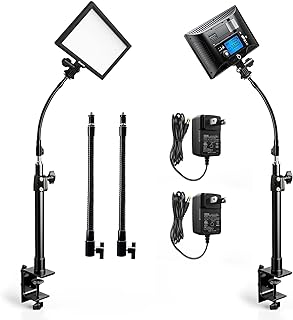
2Pack Streaming Key Light, LED Video Light Dimmable Bi-Color 3200-5600k Video Conference Lighting with Gooseneck Tubes Desk Light for Stream/Podcast/Gaming/Zoom Meetings/Broadcast/YouTube
Best For:
Streamers, podcasters, and remote workers who need directional, adjustable lighting to improve webcam video quality.
A dedicated desk key light is one of the fastest upgrades after setting up a webcam and microphone. This 2-pack dimmable bi-color LED streaming key light set covers a wide color temperature range (3200–5600K) and includes flexible gooseneck tubes so you can position light precisely where you need it. Paired together, the two lights give enough directional control to reduce shadows, soften features, and improve the perceived video quality without rearranging your whole room.
Practical benefits include improved facial illumination for streams, clearer look on video calls, and better color fidelity when you demonstrate products or unbox items. The dimming and bi-color options let you tune warmth to match ambient room lighting—warmer in the evening or more neutral during daytime streams—avoiding that unnatural cold ring-light look.
Real-life usage scenarios: clamp one light slightly above the webcam for flattering catchlights while angling the other to fill shadows or highlight props. Podcasters and interviewers can use a single light when space is limited; streamers who need soft, even lighting benefit from using both lights simultaneously. For creators on a budget, desk-mounted key lights offer much of the advantage of larger studio lights without the bulk or setup complexity.
Compared with ring lights, gooseneck key lights are more flexible in crowded desk setups and reduce reflections on monitors or glasses. Against softboxes or panel lights, they’re smaller and cheaper but provide less diffuse coverage. If you wear glasses, adjust the angle to avoid glare—these lights allow that granular positioning.
Buying tips: check clamp compatibility with your desk thickness and confirm cable length or power options. Look for adjustable brightness levels and a stable clamp design. For most streamers and remote workers looking to upgrade their video quality quickly, this set is a practical, space-conscious choice.
Check the latest price on Amazon.
Pros
- Dimmable bi-color LEDs offer flexible color temperature control
- Gooseneck tubes let you position light precisely to avoid glare
- Two-light set helps create soft, shadow-free coverage without bulky gear
Cons
- Less diffuse than larger softbox setups—may require careful placement
- Clamp and cable length compatibility should be checked for smaller desks
Want better, more flattering lighting for streams and video calls without a big studio setup? This compact two-light kit is a practical step up. Check the latest price on Amazon.
FIFINE AmpliGame Gaming Controller with 15 Shortcuts for OBS Streaming Studio with Macro Keys, Trigger Actions, PC Media RGB Controller for Content Creation/Office Work-D6 White

Best For:
Streamers and creators who want more than a tiny keypad but prefer a mid-sized, feature-rich controller with visual feedback.
The FIFINE AmpliGame controller presents a 15-shortcut layout targeted at streamers and creators who want a versatile balance between button count and desk presence. With macro keys, media controls, and RGB lighting, it’s designed to integrate with streaming setups and daily productivity tasks. The device aims to reduce reliance on keyboard combos and provide a tactile, visual hub for frequently used functions.
Why users add this after initial setup: it consolidates common actions—mute toggles, scene switches, media control, and quick macros—into one accessible panel. The RGB is more than flair; it can provide quick state feedback (for example, showing a different color when muted). That visual hint helps when you’re wearing headphones or not looking directly at the display.
Use cases cover a wide range: solo streamers can assign OBS transitions and sound triggers, editors can set up timeline navigation shortcuts, and remote workers can map meeting controls and presentation shortcuts. The device is also handy for media consumption—quickly pausing music or adjusting volume without alt-tabbing.
Compared to smaller decks, the 15-key layout provides more immediate choices without needing to layer many profiles. Compared to larger programmable consoles, it strikes a middle ground—more direct access than a mini keypad but fewer keys than a full streamer console. If you value RGB feedback and a balanced key count, FIFINE’s controller is a sensible option.
Buying considerations include verifying how well the FIFINE software handles macro chaining and whether profiles are easy to switch between apps. Also consider the key feel—if you prefer mechanical switches you may look for models with a firmer tactile response. For creators who want a dependable, colorful, and functional control pad, this model delivers useful features without being overwhelming.
Check the latest price on Amazon.
Pros
- Balanced 15-key layout offers many direct shortcuts without heavy footprint
- RGB feedback can communicate device states at a glance
- Good blend of media and macro controls for streaming and productivity
Cons
- Not as many keys as full-featured pro decks—may still require profile switching
- Key feel and software polish vary—check compatibility with your workflow
If you want a mid-sized controller with RGB feedback and robust shortcut options, the FIFINE AmpliGame is a practical choice. Check the latest price on Amazon.
Final Verdict
Small, focused upgrades are what make a streaming or remote-work setup feel finished. Macro keypads and controllers reduce fumbling and let you keep the show running smoothly; directional key lights give your webcam a more professional appearance without a full studio overhaul; and even small convenience items like snacking tools can protect your gear and reduce interruptions. The five products covered here represent different points on the spectrum: compact tactile control (ActionRing), high key-count visual control (VSDINSIDE), a practical hygiene hack for snacking (SNACTIV PRO), flexible lighting (2Pack streaming key lights), and a balanced mid-sized controller (FIFINE AmpliGame).
Which to buy first depends on the bottleneck in your setup. If you spend more time fumbling with scenes and audio, start with a macro controller. If your webcam looks flat or you’re fighting shadows and glare, prioritize lighting. If small annoyances like greasy controllers bother you, a low-cost snacking solution can eliminate them quickly. All five items are meant to reduce small frictions so your sessions run smoother and look better.
Consider desk space, software compatibility, and how much time you want to invest in setting profiles and macros. These devices pay back their cost by saving time and preventing interruptions—especially if you stream or produce content regularly. If you are still undecided, think about the most frequent interruption that costs you time or breaks immersion; pick the gadget that fixes that first, then expand your setup over time.
Happy upgrading, and if one of these seems like the right fit, follow the product links above. Check the latest price on Amazon.
Conclusion
These Gaming gadgets people keep adding after setup videos picks are trending now and offer great value and variety. Check the links above for latest prices and reviews.
As an Amazon Associate, I earn from qualifying purchases.
Tags:
streaming gadgets, macro keypad, streaming lights, gaming accessories, stream deck alternatives, content creator gear, streaming setup
