Desk Gadgets Creators Use in Real Workflows
As an Amazon Associate, I earn from qualifying purchases. This article may contain affiliate links, which means we may receive a commission at no extra cost to you.
As someone who helps creators and small teams refine their workspaces, I’ve researched the tools that actually get used in real, repetitive workflows — not just staged setups. Before diving in, a quick note: As an Amazon Associate, I earn from qualifying purchases. This article gathers practical desk gadgets that help streamline meetings, planning, content production, and everyday organization. Each pick focuses on solving a specific pain point—speeding up routine tasks, reducing friction in hybrid meetings, or keeping a busy desk tidy. Below you’ll find in-depth explanations, real-life usage scenarios, and buying considerations so you can pick the right gadget for your setup.
Buying Guide
Choosing desk gadgets for realistic workflows means prioritizing reliability, compatibility, and simplicity. Here are practical factors to consider:
– Compatibility: Check OS and app compatibility for electronics (Stream Deck, wireless chargers, smart boards). Creators often use mixed environments—make sure a gadget supports Mac and Windows or offers cross-platform apps.
– Workflow fit: Identify the problem you want to solve. Do you need faster app switching, a visual planning surface, or a cleaner desk? Choose specialized tools (macro controllers, whiteboards, organizers) rather than general-purpose items.
– Build and materials: Glass surfaces, metal clips, and solid plastic drawers last longer and feel premium. For whiteboards and planners, glass resists ghosting more than melamine.
– Size and placement: Measure your desk and consider viewing distance for larger items like a 65" interactive board. Desktop organizers should fit under your monitor or next to your keyboard without blocking movement.
– Integration and setup: Devices that plug-and-play or use familiar apps reduce friction. Streamline onboarding by choosing gadgets with clear documentation and active software updates.
– Maintenance and longevity: Dry-erase surfaces, glass planners, and metal clips require minimal upkeep. Replaceable accessories (markers, batteries) and warranty info matter.
– Cost vs. value: Compare to basic alternatives—sticky notes, phone timer apps, or a basic TV with a wireless casting stick. Sometimes a simple, cheaper tool solves the same problem. But for creators who need repeatable speed and a clean desk, investing in higher-quality gadgets pays off.
This guide will walk through five items that represent different categories—control surfaces, collaborative displays, desk planners, utility clips, and a hybrid whiteboard with wireless charging—explaining who benefits most and how each fits into a realistic workflow.
Elgato Stream Deck Mini – Control Zoom, Teams, PowerPoint, MS Office and Boost Productivity with Seamless Integration for Daily Apps, Set Up Shortcuts Easily, USB, Compatible with Mac and PC

Best For:
Creators, presenters, and small teams who need quick, repeatable control over apps and meeting functions.
The Elgato Stream Deck Mini is a compact macro controller most known for streamers, but it’s quickly become a favorite among creators, presenters, and anyone who runs repetitive desktop workflows. With six programmable keys, each button can trigger multi-step actions—launch an app, switch audio sources, jump between slides, mute/unmute during a call, or run a custom script. Its strength is not raw hardware power but how it simplifies repeated tasks into a single press. That saves time and cognitive load during busy sessions.
This device plugs in via USB and works with both Mac and Windows through Elgato’s software. The desktop app offers easy drag-and-drop setup for common apps like Zoom, Teams, PowerPoint, OBS, and Microsoft Office. The keys have customizable icons, so teams can create a visual layout that matches their workflow—stoplights for recording, camera icons for switching views, or branded buttons for specific projects.
Real-life usage scenarios are where the Stream Deck shines. For a content creator recording quick tutorial videos, the device can start a screen recording, switch to a specific camera, open a script in a text editor, and set a camera-light profile—all before the talent sits down. During live client calls it serves as a meeting manager: one press to record, one to share screen, one to toggle your microphone. Podcasters use it to trigger sound cues, play intros, or swap audio routing without fumbling through settings.
Compared with relying on keyboard shortcuts or on-screen menus, the Stream Deck reduces context switching and the chance for mistakes. It’s not a replacement for a full keyboard or a hardware mixer for complex audio setups, but it sits between those extremes as an approachable, low-friction way to accelerate tasks.
Who should buy: independent creators, small teams, instructors, or presenters who run repetitive digital tasks and value speed and reliability. Who might skip it: users who rarely multitask across apps or those satisfied with built-in keyboard shortcuts and automation tools already in place.
Buying considerations: confirm software compatibility with your essential apps, and consider whether six buttons are enough or if you prefer larger Stream Deck models with more keys. The software is actively updated, which matters for long-term integration with frequent app updates.
Check the latest price on Amazon.
Pros
- Streamlined one-press macros for complex tasks
- Easy drag-and-drop software and customizable icons
- Small footprint and USB plug-and-play
Cons
- Only six keys may be limiting for very complex workflows
- Not a substitute for a full audio/video hardware mixer
Check the latest price on Amazon.
Smart Board, 65" Interactive Whiteboard with Google EDLA, Built-in Digital Whiteboard, Wireless Casting, Split-Screen & Unlimited Canvas for Business and Education (Wall Mount Included)

Best For:
Teams, educators, and agencies that run regular collaborative sessions and need quick, reliable screen sharing and annotation.
A 65" interactive smart board is a leap from a typical monitor or projector when it comes to collaborative work. This model combines a crisp touch-enabled display with built-in digital whiteboarding, wireless casting, and split-screen functionality—features that matter during hybrid meetings, workshops, and classroom-style sessions. The integrated Google EDLA (education and collaboration app ecosystem) makes it easy to annotate, save canvases, and share notes immediately with remote participants.
In practical workflows, the board replaces the awkwardness of juggling a projector, a separate laptop, and a physical whiteboard. Instead of taking photos of a marker board, session notes are saved digitally and can be exported to Google Drive or shared via a link in real time. Wireless casting enables multiple participants to display their screens instantly without hunting for adapters, which is especially useful in creative reviews where people switch between design comps, video timelines, and slide decks.
Real-world use cases include agency creative reviews where art directors pull up frame grabs while the team annotates directly on the panel, or university seminars where instructors split the screen between lecture slides and live web resources. The unlimited canvas is helpful for brainstorming sessions that don’t fit a single screen—teams can pan and zoom across ideas instead of cramming everything into one static slide.
Compared to standard alternatives like a TV plus a wireless dongle or a projector, the smart board consolidates hardware and reduces setup time. It also offers a more tactile, natural feel than mouse-driven annotation on a laptop. That said, it’s a larger, more permanent investment and requires wall space and often an AV-capable room to get the most value.
Who should buy: medium to large teams, education settings, or studios that host regular collaborative sessions and want to cut meeting setup time. Who may not need it: solo creators working from a small home office or teams that don’t run frequent in-person collaboration.
Buying considerations: ensure mounting space, check network requirements for wireless casting, and verify the board’s file export formats match your team’s sharing habits. Also consider AV integration (external sound) if you’ll use it for video reviews.
Check the latest price on Amazon.
Pros
- Consolidates display, whiteboarding, and casting into one device
- Unlimited canvas and split-screen for complex sessions
- Saves and shares session notes digitally
Cons
- Requires wall space and a dedicated room for best use
- Larger upfront investment compared with a TV or projector setup
Check the latest price on Amazon.
Varhomax Glass Desk Whiteboard Gray with Calculator, Desktop Organizer Dry Erase White Board with Storage, to Do List Memo Notepad for Home Office and School Supplies

Best For:
Freelancers, remote teachers, and home-office creatives who want a durable on-desk planning and sketch surface.
For creators who sketch ideas, track daily tasks, or need a quick visual reference without switching screens, a glass desk whiteboard offers a tidy, durable option. This Varhomax glass desk whiteboard pairs a smooth gray glass surface with a slim organizer and an integrated calculator, delivering a multi-purpose desktop unit that reduces clutter and keeps frequently used notes front-and-center.
Glass as a writing surface has real advantages: it resists staining and ghosting better than cheaper melamine boards, and it feels premium under a dry-erase marker. The neutral gray finish reduces glare and provides a subtle backdrop so colored markers pop, which helps for rapid visual prioritization. The built-in storage tray is ideal for markers, erasers, or cable clips; the small compartment keeps essentials within reach without overtaking the workspace.
Practical usage scenarios include a freelance designer who sketches micro-layouts while reviewing a brief, a podcaster who notes timestamps and cues during recording, or a remote teacher who writes quick reminders and math problems for a virtual class. The calculator window is surprisingly handy for quick conversions or budget checks when you don’t want to open a phone app.
Compared to sticky notes and paper pads, this glass board reduces paper waste and keeps the desk looking intentional. Compared to larger wall whiteboards, it’s portable and close at hand—great for tasks that need constant visual reference but don’t require wall real estate. It’s not a replacement for a full-sized brainstorming surface, but it’s an excellent complement to a clean, minimalist desktop setup.
Who should buy: creators and home office users who want a durable, stylish on-desk planner and quick sketch surface. Who might skip it: those who prefer digital-only note systems or need large collaborative boards.
Buying considerations: verify the board’s dimensions for your desk, check marker compatibility (alcohol-based dry erase recommended), and note cleaning instructions to preserve the glass finish.
Check the latest price on Amazon.
Pros
- Glass surface resists ghosting and looks premium
- Integrated storage and calculator for quick tasks
- Compact and keeps notes within arm’s reach
Cons
- Smaller surface than wall whiteboards
- Not a replacement for collaborative large-format whiteboarding
Check the latest price on Amazon.
208 PCS Binder Clips Paper Clamps Assorted Sizes, Metal Paper Binder Clip, Black Binding Paperwork Clamp Bulk, School Teachers Office Supplies

Best For:
Offices, educators, and creators who work with printed materials or need inexpensive, multi-purpose clamps.
Bulk binder clips are one of those low-tech items that solve a surprising number of desk problems. This 208-piece assorted pack covers a range of sizes, so you’ll have options for thin stacks of handouts, thick documents, or even non-paper uses like cable bundling or fabric clamps during craft projects.
They’re durable metal clips with the familiar handles that fold down for a cleaner profile or flip up for easy removal. In everyday workflows, binder clips serve as inexpensive yet reliable hardware: clip together script pages for a podcast, clamp printed mood boards for a client presentation, or secure a stack of contracts before scanning. They’re also handy for cable management—loop a clip around the edge of your desk and thread cords through the handles to prevent cables from sliding to the floor.
For creators who ship physical goods, the clips can be repurposed as temporary seals, or used in packaging stations to keep labels or invoices attached. Teachers and classroom assistants will appreciate the quantity—enough to organize multiple lesson sets without running out mid-week.
Compared with single-size retail packs or cheaper plastic clips, a mixed metal assortment is more versatile and long-lasting. They’re not glamorous, but they’re economical and often more useful than some more expensive, single-use desk gadgets.
Who should buy: offices, teachers, content creators who handle printed media, and makers who need reliable, cheap clamps. Who might not need this: purely digital-only workflows that rarely use paper or physical materials.
Buying considerations: keep a small label or drawer to separate sizes for quick access, and consider color-coding or removing handles for a lower profile when using as cable guides.
Check the latest price on Amazon.
Pros
- Large assortment covers many tasks
- Durable metal construction
- Economical and versatile for desktop use
Cons
- Can scratch delicate surfaces if handles aren’t folded
- Not useful for purely digital-only setups
Check the latest price on Amazon.
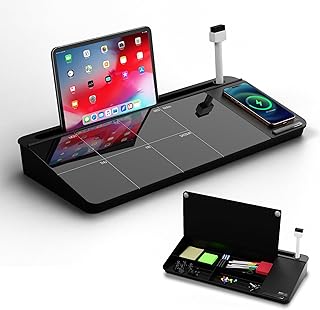
NEXTLUXE Glass Desk Whiteboard with Wireless Charger – Desktop Whiteboard with Storage, Weekly Planner, Dry Erase Pad, Organizer Drawer for Home, School, Office Gadgets – Black (Black)
Best For:
Creators who want an integrated desk planner and wireless charging to reduce cable clutter and keep weekly tasks visible.
The NEXTLUXE glass desk whiteboard combines a sleek weekly planner surface with a built-in wireless charger and small organizer drawer—an appealing hybrid for a modern creator’s desk. This product is designed to consolidate everyday needs: jot down priorities, charge a phone without extra cables, and stash small accessories like sticky flags, SD cards, or a USB thumb drive in the integrated compartment.
A glass surface offers the same anti-ghosting and premium feel as other glass boards, while the printed weekly layout keeps recurring tasks visible. The wireless charging pad is a convenience feature that reduces cable clutter, especially for phones that support Qi charging. The organizer drawer is shallow but useful for small items you reach for frequently during work sessions.
Typical uses include a video editor who marks out weekly deliverables while charging a phone that previews mobile edits, a social media manager who maintains a visible content calendar while keeping frequently used SIM tools nearby, or a remote worker who wants a tidy desk that supports both analog planning and device charging.
Compared to basic desk pads or stand-alone wireless chargers, this hybrid unit saves space and adds visual structure to planning. It’s more refined than a mousepad-sized charger and more functional than a paper planner. That said, it won’t replace a full-sized wall board for expansive brainstorming and its charging coil is best for centrally-placed, Qi-compatible phones.
Who should buy: creators who appreciate a tidy desk, like integrated solutions, and regularly use a wireless-charging phone. Who might skip it: users who prefer separate, specialized devices or don’t use wireless charging.
Buying considerations: confirm your phone supports Qi charging and check the charger’s placement on the pad; measure the unit to ensure it fits your desk layout. Also consider marker type and cleaning methods for the glass surface.
Check the latest price on Amazon.
Pros
- Integrated wireless charging reduces cables
- Glass weekly planner resists ghosting and looks premium
- Small drawer and organizer keep essentials handy
Cons
- Charging requires Qi-compatible phones
- Drawer is small—limited storage for larger accessories
Check the latest price on Amazon.
Final Verdict
Picking the right desk gadgets comes down to matching tools to your most common bottlenecks. For anyone who frequently toggles between apps and presentation modes, the Elgato Stream Deck Mini provides immediate time savings by turning multi-step actions into single presses. Teams that collaborate in person or in hybrid meetings will get the most value out of a 65" interactive smart board—the time saved in setup and the ability to save session notes digitally often pays for itself in efficiency.
For solo creators and home-office workers, small personal surfaces like the Varhomax and NEXTLUXE glass desk whiteboards keep plans visible and reduce digital context switching. They’re also better for long-term aesthetics and cleaner desks compared with stacks of sticky notes. And finally, a bulk pack of binder clips is one of the most underrated, cost-effective additions to any creative workspace—simple, durable, and endlessly useful.
When choosing, prioritize compatibility and the specific problems you want to solve. If you need speed at the keyboard and during calls, choose the Stream Deck. If you run frequent group sessions, invest in the interactive board. If your focus is a tidy desk and quick planning, pick one of the glass whiteboard organizers. And keep a set of binder clips handy—they’re surprisingly versatile.
If you want to streamline your day-to-day and create a workspace that supports realistic workflows rather than just looking good in photos, these five picks cover the bases worth investing in. Check the latest price on Amazon.
Conclusion
These Desk gadgets creators use during realistic workflow setups picks are trending now and offer great value and variety. Check the links above for latest prices and reviews.
As an Amazon Associate, I earn from qualifying purchases.
Tags:
desk gadgets, creator tools, home office organization, interactive whiteboard, stream deck, desk planner, productivity gadgets
