Top Productivity Gadgets for Remote Workers
As an Amazon Associate, I earn from qualifying purchases. This article may contain affiliate links, which means we may receive a commission at no extra cost to you.
Remote work has pushed many of us to rethink the tools we use every day. From managing focus and meeting flow to automating repetitive tasks, small gadgets can deliver big productivity gains. This guide looks at five popular accessories that remote workers and hybrid teams are buying right now. I researched product specs, common user feedback, and practical workflows to present an honest buying guide—no hands-on claims—so you can decide what fits your routine. As an Amazon Associate, I earn from qualifying purchases. This article may contain affiliate links, which means we may receive a commission at no extra cost to you.
Buying Guide
Choosing a productivity gadget starts with clarifying the problem you want to solve. Are you losing time fumbling through slide decks and screen-sharing tools? Do you get distracted between tasks, or need a non-intrusive way to time sprints and breaks? Or maybe you need a small macro controller to trigger common actions with a single tap. Below are a few practical considerations to help you decide:
1) Compatibility and connectivity: For presentation remotes and stream controllers, confirm Mac/Windows compatibility and whether a USB receiver or Bluetooth is required. A 2.4GHz dongle tends to be plug-and-play for systems with standard USB ports, while Bluetooth avoids losing a receiver but can require pairing.
2) Audible vs silent alerts: If you work in shared spaces or with noise-sensitive family members, vibration or silent visual alerts are vital. Many Pomodoro cubes offer multiple modes: sound, vibration, and silent. Check battery or rechargeability—rechargeable timers reduce ongoing costs.
3) Customization and shortcuts: Stream Deck-style devices offer programmable keys that save seconds or minutes every day by running macros, switching apps, muting mics, or controlling scenes. Look for easy software setup and pre-built integrations for Zoom, Teams, PowerPoint, and common productivity apps.
4) Form factor and visibility: A compact clicker or small cube is easy to keep on a desk; bright colors or clear displays help track time at a glance. If you present often, tactile feedback and a reliable slide-advance feature are essential.
5) Intended workflow: For teachers, tutors, or parents, visual timers help kids learn time awareness. For presenters and virtual trainers, a wireless presenter with volume control and a reliable receiver is a game-changer. For content creators and power users, a programmable mini keypad can automate complex multi-step tasks.
Armed with these points, the following product breakdowns dive into who benefits most from each gadget, realistic use cases, and practical pros and cons.
QUI Presentation Clicker with Volume Control, 2.4GHz USB Wireless Presenter Remote, PowerPoint Clicker Slide Advancer Compatible with Mac, Windows, Google Slides, Keynote

Best For:
Remote presenters, teachers, and workshop hosts who frequently control slide decks and multimedia during virtual meetings.
If you lead virtual meetings, webinars, or classrooms, a reliable presentation clicker can make the difference between a smooth session and awkward fumbling. The QUI Presentation Clicker is a compact 2.4GHz wireless presenter designed for slide control and basic media commands. It pairs via a USB receiver—no complex Bluetooth setup—and includes a volume control feature that’s surprisingly handy when you need to adjust multimedia audio during a demo.
This presenter appeals to remote professionals who frequently share slides and switch between speaking and handling media. The plug-and-play 2.4GHz dongle provides stable connectivity across reasonable distances, better suited to home office layouts and small meeting rooms than very large auditoriums. It supports the usual suite of platforms—PowerPoint, Google Slides, Keynote—and works on both Mac and Windows systems, making it a versatile pick if you switch devices.
Practical benefits include tactile buttons for next/previous slide, a laser pointer functionality (if included in the model you pick), and the convenience of local volume adjustment. Many users find that volume controls on laptops or within conferencing apps can be fiddly during live presentations; having a dedicated control on the presenter lowers friction and keeps your focus on delivery. The device solves the common problem of interrupting a meeting to call up system audio settings or hunt for the cursor when you only need a small tweak.
Use cases: teachers running virtual lessons who need to change slides and pause clips smoothly; product managers demoing prototypes during remote reviews; workshop facilitators who switch between slides and short videos. Compared with using keyboard shortcuts or in-app controls, the QUI clicker cuts motion and mental overhead, keeping transitions fluid.
Buying considerations: confirm whether the unit includes a laser pointer and whether it stores its USB receiver inside the body—both features improve portability. If you use a computer with limited USB ports, plan for a small USB hub or confirm Bluetooth alternatives. The 2.4GHz connection is generally reliable but keep in mind other 2.4GHz devices can cause interference in congested environments.
Who should buy this: presenters, educators, and hybrid workers who value smooth slide control and quick volume adjustments. Who may not need it: those who rarely share slides or already use a touch-enabled device to navigate their presentations.
Pros: "Plug-and-play 2.4GHz connection for easy setup", "Built-in volume control for on-the-fly audio adjustments", "Cross-platform compatibility (Mac/Windows/Google Slides/Keynote)"
Cons: "Requires USB receiver which can be lost if not stored", "May lack advanced programmable buttons for power users"
Check the latest price on Amazon.
Pros
- Plug-and-play 2.4GHz connection for easy setup
- Built-in volume control for quick audio adjustments
- Compatible with Mac, Windows, Google Slides and Keynote
Cons
- Requires USB receiver which can be misplaced
- Limited advanced programmability for power users
Check the latest price on Amazon.
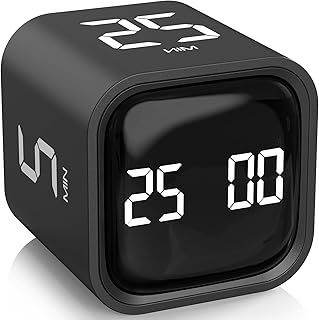
Rotating Pomodoro Timer 5, 25, 10 50 Minutes Preset, Desk Productivity Flip Timer, ADHD Tool Cube Countdown Stopwatch, Vibration/High/Low Volume/Custom Modes, for Work, Study, Back to School, Kitchen
Best For:
People who prefer a tactile, distraction-free timer for Pomodoro sprints—students, remote workers, and parents balancing work and kids.
The rotating Pomodoro timer is a clearly designed, tactile focus tool that brings the Pomodoro Technique to your desk with a flip-and-go motion. Instead of setting a smartphone app, you rotate the cube to a preset face—5, 10, 25, or 50 minutes—and the countdown starts. This simplicity is its strength: it removes the friction of unlocking a phone, hunting through menus, or relying on notifications that can get buried under other alerts.
Remote workers often struggle with task segmentation and attention drift; a physical timer like this provides a visible commitment to a sprint. The unit’s multiple alert modes (vibration, high/low volume, and custom settings) make it suitable for shared spaces or noise-sensitive households. Parents appreciate the clear visual cues when working from home while supervising kids, and those managing ADHD or executive-function challenges often report better session follow-through when a tangible timer marks work and break intervals.
Practical scenarios: use the 25-minute preset for focused deep work, the 5- or 10-minute settings for quick triage or email bursts, and the 50-minute mode for longer creative stretches. Flip it during a video call prep to keep your rehearsal tight, or place it in view during co-working sessions to coordinate synchronized breaks. The cube’s straightforward UX reduces digital distractions and the need to use your phone as a timer.
Compared to smartphone apps and browser timers, this device is distraction-free; there’s no temptation to check notifications. Compared to other physical timers, rotating models are often more intuitive and faster to operate than button-heavy devices. Battery life and build quality vary by model, so check whether the unit uses replaceable batteries or a rechargeable cell—rechargeable versions are cheaper to maintain over time.
Who should buy this: anyone who benefits from physical, visible time cues—remote workers, students, parents, and people with attention challenges. Who may not need it: users who prefer detailed analytics from digital apps or who always use software-based time management integrated with task apps.
Pros: "Instant flip-to-start operation", "Multiple alert modes including vibration for shared spaces", "Clear preset times for common Pomodoro intervals"
Cons: "Fewer customization and analytics than app-based timers", "Battery or recharge method varies by model"
Check the latest price on Amazon.
Pros
- Flip-to-start simplicity that reduces friction
- Vibration and volume modes for different environments
- Common Pomodoro presets ready out of the box
Cons
- Lacks the analytics of app-based timers
- Power source varies; check battery vs rechargeable
Check the latest price on Amazon.
Elgato Stream Deck Mini – Control Zoom, Teams, PowerPoint, MS Office and Boost Productivity with Seamless Integration for Daily Apps, Set Up Shortcuts Easily, USB, Compatible with Mac and PC

Best For:
Power users and creators who want to automate repetitive digital tasks—teachers, presenters, and hybrid workers who run many calls or demos daily.
The Elgato Stream Deck Mini is more than a streamer’s toy—it’s a compact productivity powerhouse ideal for remote workers who want to shave time off repetitive tasks. With six fully customizable LCD keys, you can program app launches, toggle mute, switch scenes, send chat messages, or run multi-step macros that would otherwise require several clicks. The official Elgato software supports integrations with Zoom, Microsoft Teams, PowerPoint, and many other apps, making setup straightforward.
Where this device shines is in reducing cognitive load. Instead of remembering a sequence of shortcuts to start a meeting, share a screen, lower participant volume, and open a note-taking app, one keypress can execute all of those actions. For consultants, instructors, and customer support teams who toggle between tools dozens of times daily, the time savings add up and reduce context-switching fatigue.
Real-world use cases: assign a key to mute/unmute during calls, another to bring a presentation into focus, a third to launch a reference document or a digital whiteboard. For creators and podcasters who also work remotely, the Stream Deck Mini helps manage recording controls and scene changes. It’s particularly helpful in multi-monitor setups where finding the right window can be slow during a live session.
Compared to keyboard macro pads, the Stream Deck’s labeled, icon-based keys are easier to learn and remember—especially for teams where several people share the device. It does require a USB connection and installation of the Elgato software; power users who want deeper hardware programmability might prefer larger Stream Deck models or alternative macro keypads with more physical buttons.
Who should buy this: power users, remote educators, and creators who want to automate repetitive workflows and reduce time switching apps. Who may not need it: casual video callers or those who don’t run macros or multi-step actions frequently.
Pros: "Six programmable LCD keys for quick macros", "Native integrations with Zoom, Teams and Office apps", "Easy visual labels reduce learning curve"
Cons: "Requires Elgato software and a USB connection", "Limited number of keys compared to full-sized stream decks"
Check the latest price on Amazon.
Pros
- Six programmable LCD keys for quick macros
- Native integrations with Zoom, Teams and Office
- Visual icons make shortcuts easy to remember
Cons
- Requires Elgato software and USB connectivity
- Fewer keys than full-size Stream Decks for heavy users
Check the latest price on Amazon.
Jack Pomodoro Timer – Productivity Cube, Visual Focus Timer, Mute & Vibration & Adjustable Sound Alert, for Office, ADHD, Study, Work, 3/5/10/25/30/60min & Custom Countdown – Black

Best For:
Workers who need flexible timing options—writers, developers, and anyone who alternates between short tasks and long focus blocks.
The Jack Pomodoro Timer is a multi-mode productivity cube that caters to detailed scheduling needs. Unlike flip-only cubes, this timer offers a wide range of preset intervals—from short 3-minute bursts to an hour-long focus period—and supports a custom countdown, which is handy when your task requires a non-standard duration. With mute, vibration, and adjustable sound alerts, it fits both quiet home offices and louder environments.
This model addresses a common problem for remote workers: inconsistent session lengths and a desire for flexible timing. Where strict Pomodoro purists limit themselves to 25/5 cycles, many productive people prefer adapting sprint lengths to the task. The Jack timer’s variety of presets lets you pick short check-ins, medium focus blocks, or extended writing sessions without fiddling with an app.
Real-life scenarios: writers prepping a chapter might use the 60-minute setting for deep editing, switching to a 3- or 5-minute sprint for quick tidying tasks. Parents working with a toddler may rely on vibration or silent modes to avoid waking the child while still tracking progress. Teams doing standups or paired programming sessions can use visible countdowns to keep meetings brisk and on schedule.
Compared with smartphone timers, the Jack cube eliminates screen temptation and encourages a tactile habit. Compared to simpler cubes, the Jack’s broader presets and custom mode give you more flexibility but might come with a slightly steeper learning curve to program custom times. Check specifications for battery type—some variations use rechargeable batteries, which are more convenient in the long run.
Who should buy this: adaptable workers who want more timing options than standard Pomodoro cubes—writers, developers, and those managing variable task lengths. Who may not need it: strict Pomodoro adherents who only ever use the 25/5 pattern or those who want app-sync analytics.
Pros: "Wide range of presets including 3 and 60-minute options", "Custom countdown for non-standard session lengths", "Multiple alert modes including vibration and mute"
Cons: "Slightly more complex to set up custom times than basic cubes", "Check battery/recharge details before buying"
Check the latest price on Amazon.
Pros
- Wide range of presets from 3 to 60 minutes
- Custom countdown option for unique workflows
- Mute, vibration, and adjustable sound modes
Cons
- Custom settings can be slightly more complex to program
- Battery type varies; confirm rechargeable vs disposable
Check the latest price on Amazon.
Cube Pomodoro Timer – Flip to Start Countdown, Rechargeable Mini Productivity Timer for Study, Office, 11 Preset Times, Silent/Vibration, Time Management Tool for Kids & ADHD (Yellow)

Best For:
Frequent users who want a rechargeable, low-distraction timer—students, parents, and remote workers focused on minimizing screen time.
This rechargeable Cube Pomodoro Timer combines bright, friendly design with practical presets to help you manage time without pulling out your phone. The flip-to-start motion and 11 preset times make it fast to deploy for a variety of tasks—from homework and focused study to short administrative bursts and cooking timers. Rechargeability removes the recurring cost of disposable batteries and suits frequent users.
The small footprint and silent/vibration modes make this model office- and kid-friendly. Teachers and parents often use these cubes to teach time awareness to children or to coordinate focused family work sessions. The color-coded appearance is particularly useful in shared spaces where a visible, cheerful timer reduces disputes about “how much longer” something will take.
Practical use cases: set an 11-minute burst to tackle the hardest part of your to-do list, use a 25-minute preset for classic Pomodoro sprints, or choose a 3- or 5-minute timer for quick breaks. The rechargeable battery makes it a reliable companion for daily—and sometimes multiple—sessions per day without worrying about replacements. If you pair this cube with a smartphone tracking habit, you get the best of both worlds: a physical anchor to reduce screen time and digital logs for progress if you prefer.
Compared to non-rechargeable cubes, this model lowers maintenance and is greener over time. Compared to app-based solutions, it provides less analytic feedback but a much lower distraction profile. If you need deep time-tracking metrics, combine the cube with a lightweight time-tracking app.
Who should buy this: frequent users who want a low-friction, eco-friendly timer—parents, students, and busy remote workers who prefer physical reminders. Who may not need it: occasional timers who don’t want another device on their desk or those who rely on app-based tracking and analytics.
Pros: "Rechargeable battery for frequent use", "11 preset times for flexible scheduling", "Silent and vibration modes suitable for shared spaces"
Cons: "No analytics or app sync", "Smaller display may be hard to read from a distance"
Check the latest price on Amazon.
Pros
- Rechargeable battery for regular daily use
- Eleven preset times for flexible Pomodoro routines
- Silent and vibration modes for quiet environments
Cons
- No app sync or analytics
- Display may be small to read from a distance
Check the latest price on Amazon.
Final Verdict
Small hardware investments can yield outsized productivity gains when chosen to solve a specific friction point. If your primary pain is clumsy presentations and audio control, the QUI Presentation Clicker simplifies slide navigation and volume tweaks. If your main challenge is staying focused and avoiding phone distractions, the rotating Pomodoro timer and Cube Pomodoro Timer give you tactile, visible time blocks—choose the rechargeable cube if you’re a heavy user. For flexible timing needs, the Jack Pomodoro Timer offers a rich set of presets and a custom countdown. And for power users who want to automate software workflows, the Elgato Stream Deck Mini packs the biggest time-saving punch with programmable keys and native integrations.
When picking one of these devices, match it to your daily routine: choose a clicker if you present often, a physical timer if you need distraction-free focus, and a stream deck if you perform repetitive digital tasks that benefit from macro shortcuts. Consider durability, battery type, and whether you prefer vibration or audible alerts in shared environments. Each gadget solves a common remote-work problem—reduced friction, better attention management, and faster task switching—without a steep learning curve.
If you’re still unsure, think about the single most recurring annoyance in your day and buy the gadget that addresses it directly: smoother meetings, better focus, or instant automation. Any of the five options featured here can improve a remote work routine when used intentionally. Check the latest price on Amazon.
Conclusion
These Productivity gadgets trending among remote workers lately picks are trending now and offer great value and variety. Check the links above for latest prices and reviews.
As an Amazon Associate, I earn from qualifying purchases.
Tags:
remote work gadgets, Pomodoro timer, presentation clicker, Stream Deck, productivity tools, focus timer, home office accessories
